Everything you need to set up Cuelight and use each mode. Pictures are from version 1.1.6.
01Get started
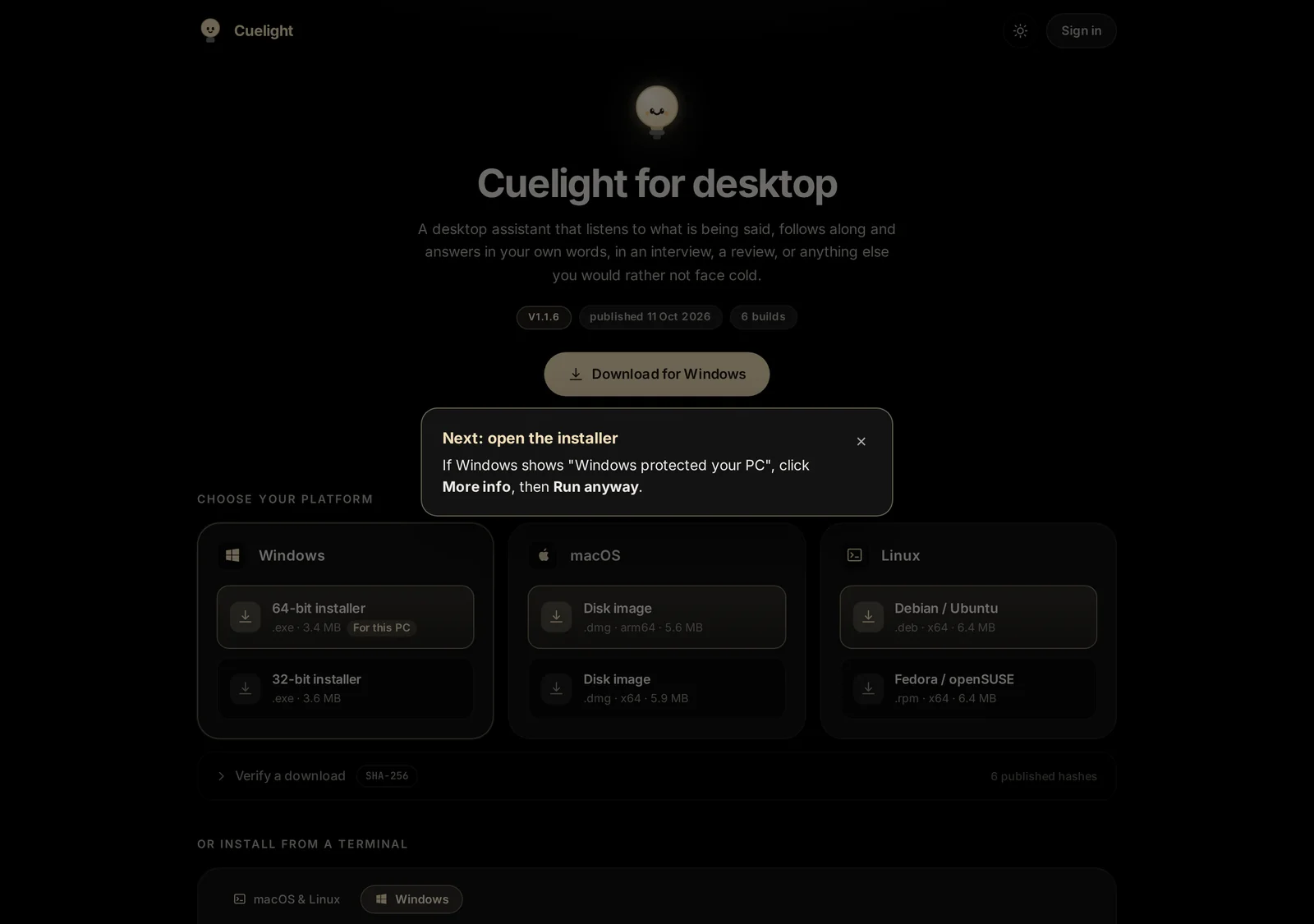
Install. Download the installer for your computer from Downloads (Windows 64-bit or 32-bit, macOS, Linux).
Sign in with your email and password, or with Google. New accounts start with free credit.
Choose a model and a default mode in Setup, then press Start Cuelight. The bar appears at the top of your screen.
Windows warning on first install. The installer is not yet code-signed, so Windows may show "Windows protected your PC". Click More info, then Run anyway. The Downloads page shows this reminder right after you download.
02Setup
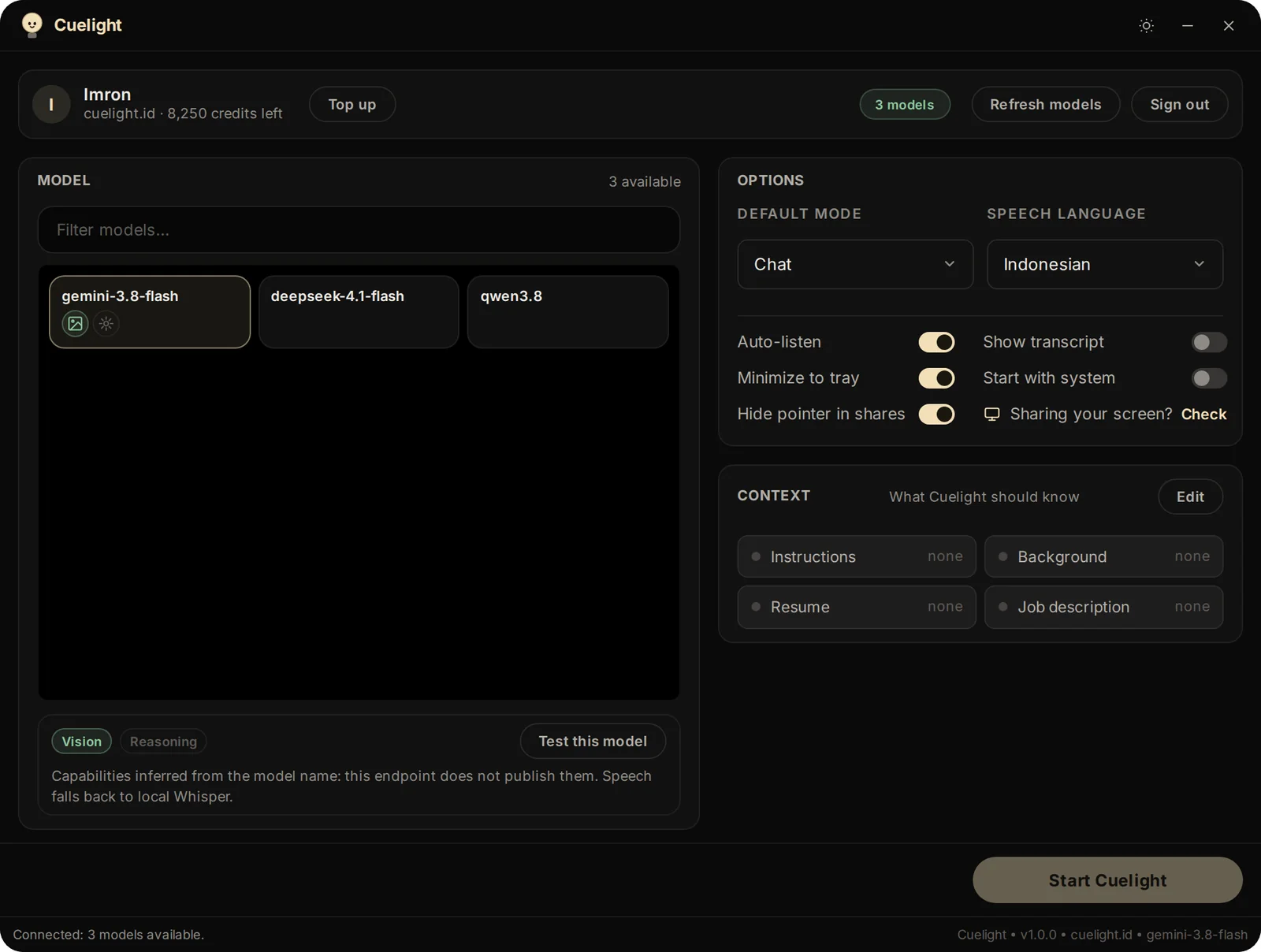
Setup is where you pick the model, the mode and what Cuelight should know. Open it from the tray icon, or with Ctrl+Shift+O.
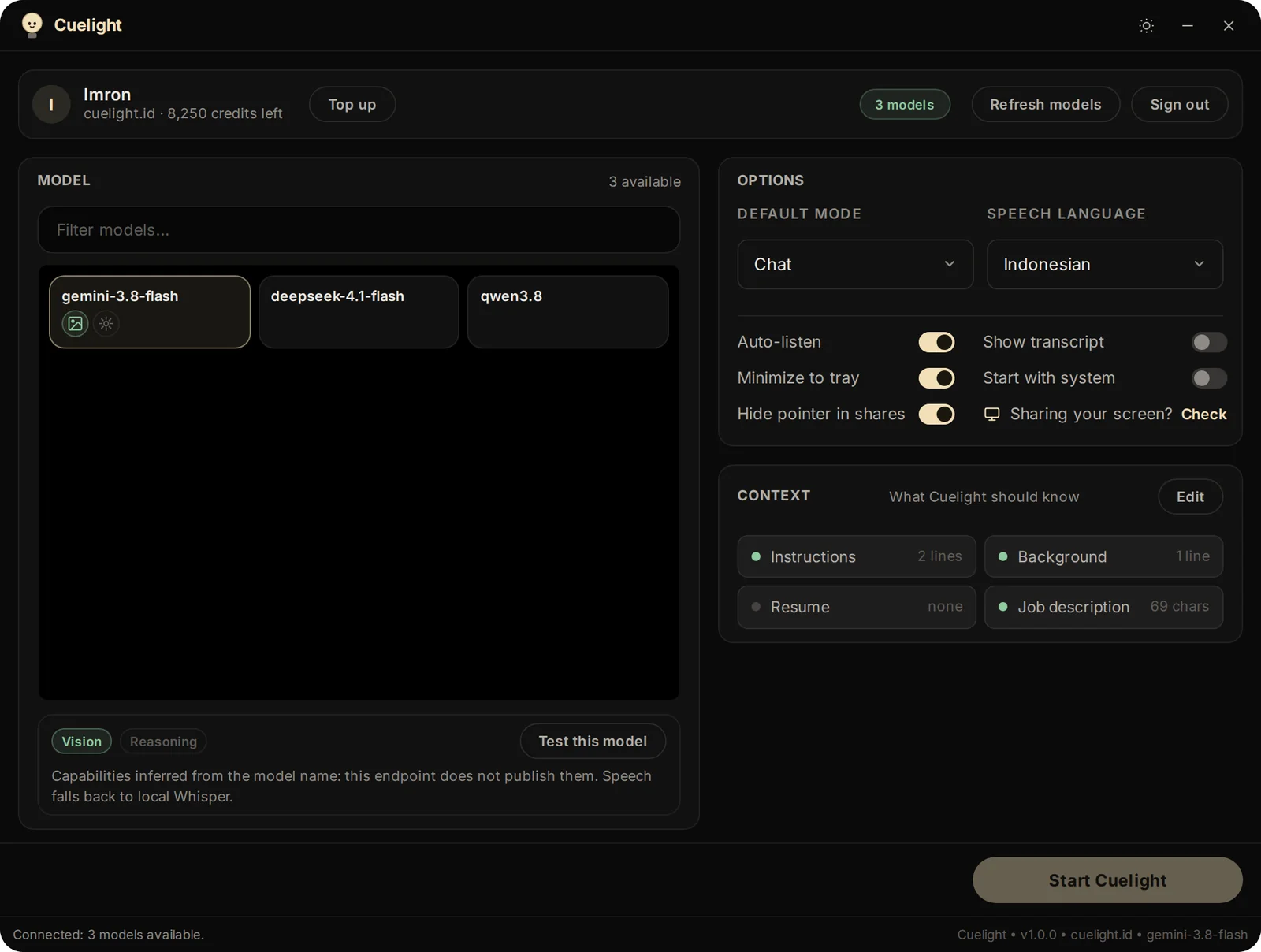
The Setup window. Left: the models you can use; the badges show what each one can do (for example reading images). Right, top: Options, with the default mode, the speech language and your preferences. Right, bottom: a summary of your Context. Press Start Cuelight to open the bar.
Options
Default mode: the mode the bar opens in. You can change it later from the bar.
Speech language: the language being spoken in the call. Pick the exact language for the best transcription.
Auto-listen starts listening as soon as the bar opens. Show transcript keeps a running transcript panel available. Minimize to tray and Start with system control how the app runs. Hide pointer in shares (Windows) keeps your mouse pointer out of screen shares.
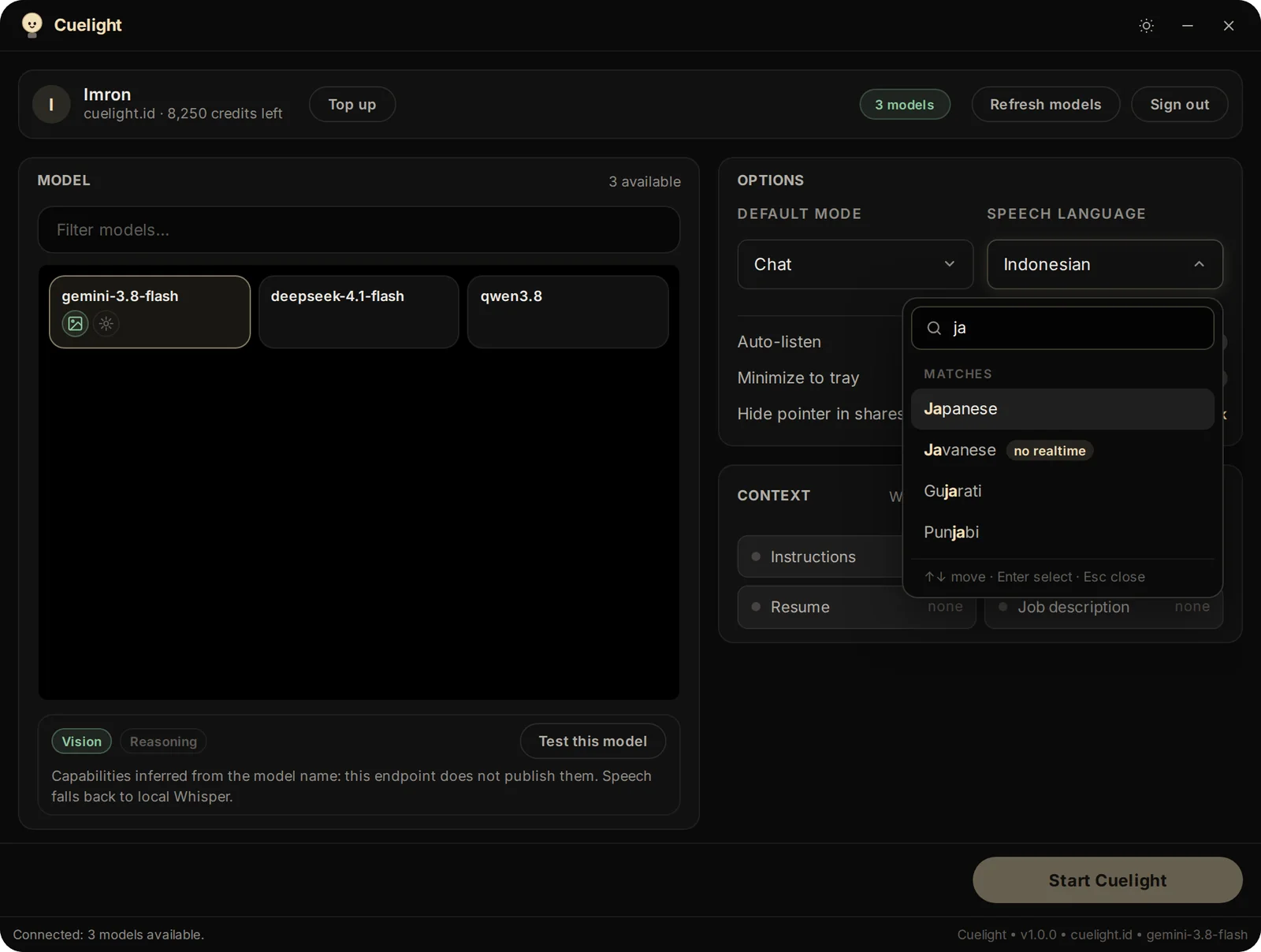
Searchable lists. Click a list and start typing: here "ja" finds Japanese and Javanese. Use the arrow keys and Enter to pick, Esc to close. The most used choices are listed first under Suggested.
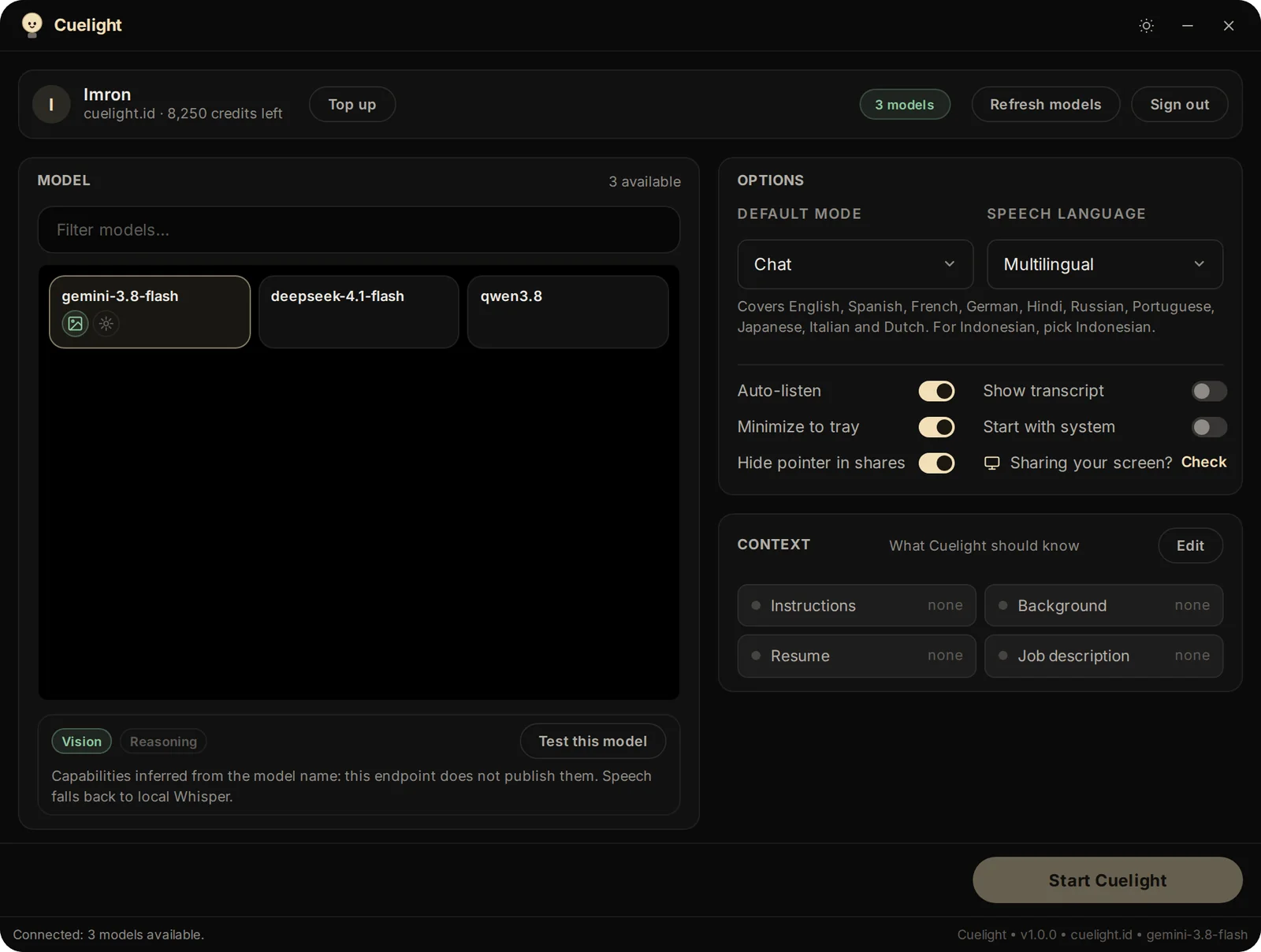
What a choice means. When a language has a limit, a line under the lists says so. Multilingual covers ten languages (English, Spanish, French, German, Hindi, Russian, Portuguese, Japanese, Italian, Dutch); for Indonesian, pick Indonesian.
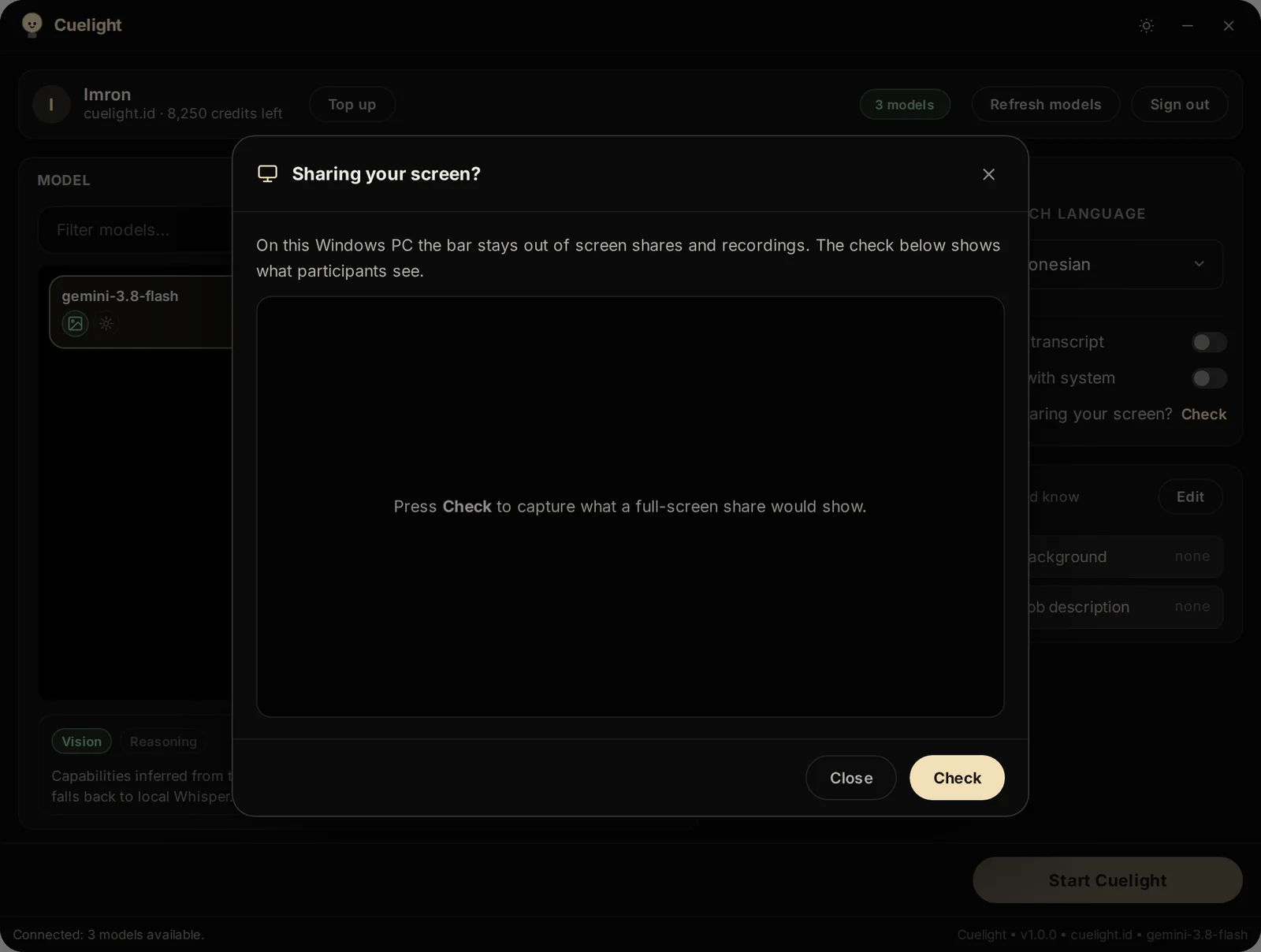
Sharing your screen? Opens this window. It explains what your system can hide from a screen share, and Check takes a picture of what a full-screen share would show, so you can see for yourself whether the bar is visible.
Context
Context is what Cuelight should know about you and the situation. It is saved on this computer only and sent with each question so the answer fits; it is never stored on the server.
Context summary. The card shows which parts are filled in (green dot) and how much. Click Edit, or any part, to open the editor.
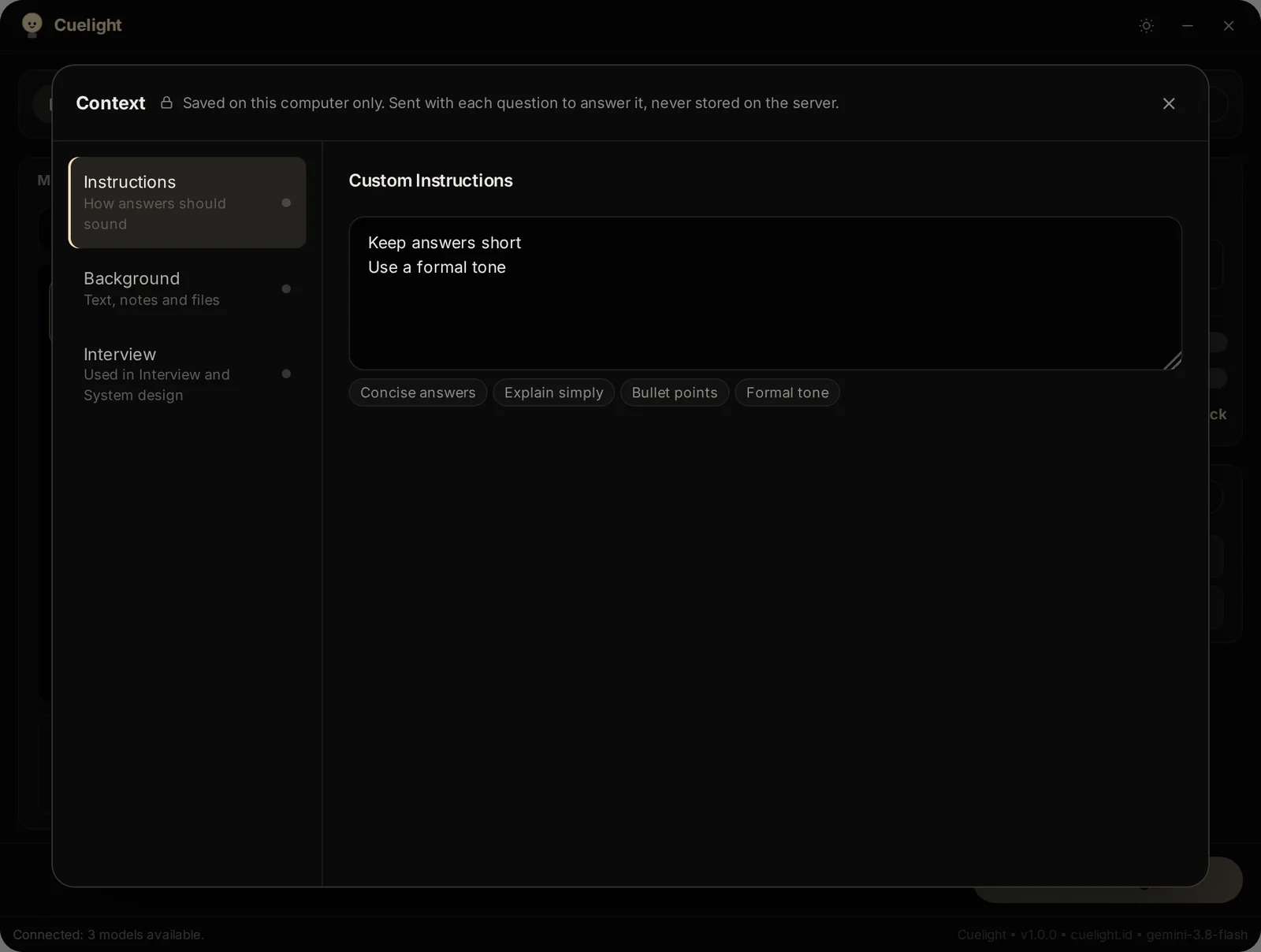
Instructions tab. How answers should sound, for example "Keep answers short" or "Use a formal tone". The buttons under the box add common instructions in one click.
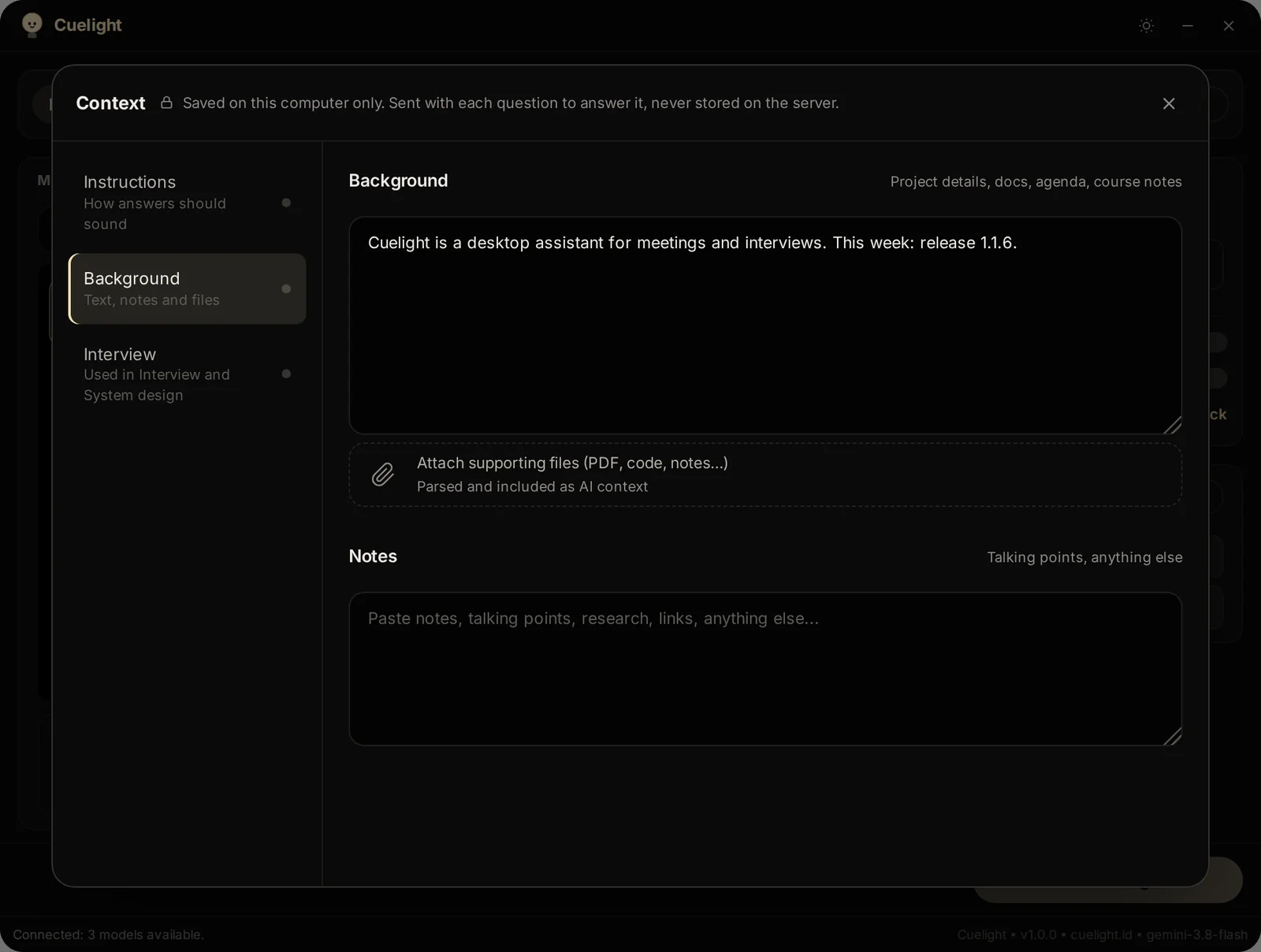
Background tab. Facts about your work or the meeting (projects, product details, an agenda), your own notes, and files such as PDFs or documents, which are read and added as context.
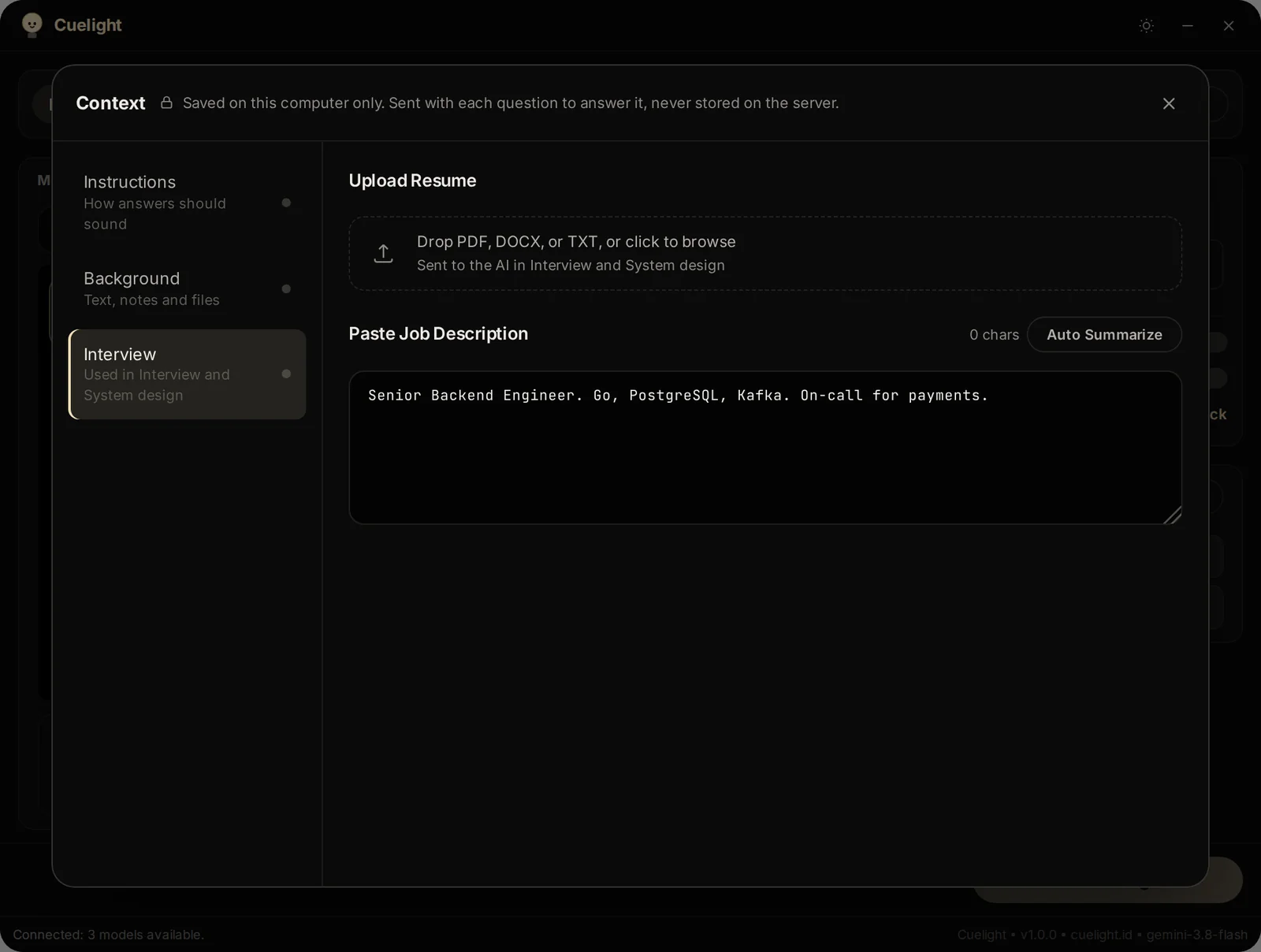
Interview tab. Your resume and the job description. These are used only in the Interview and System design modes. Auto Summarize shortens a long job description.
03The bar
The bar sits on top of your other windows. On Windows it is hidden from screen shares and recordings.
The bar, collapsed. From the left: the Listen switch (headphones, the other side of the call), the microphone switch (your own voice), the status, the session timer, END to stop everything, the opacity slider, the theme button, the expand arrow, minimise and close.
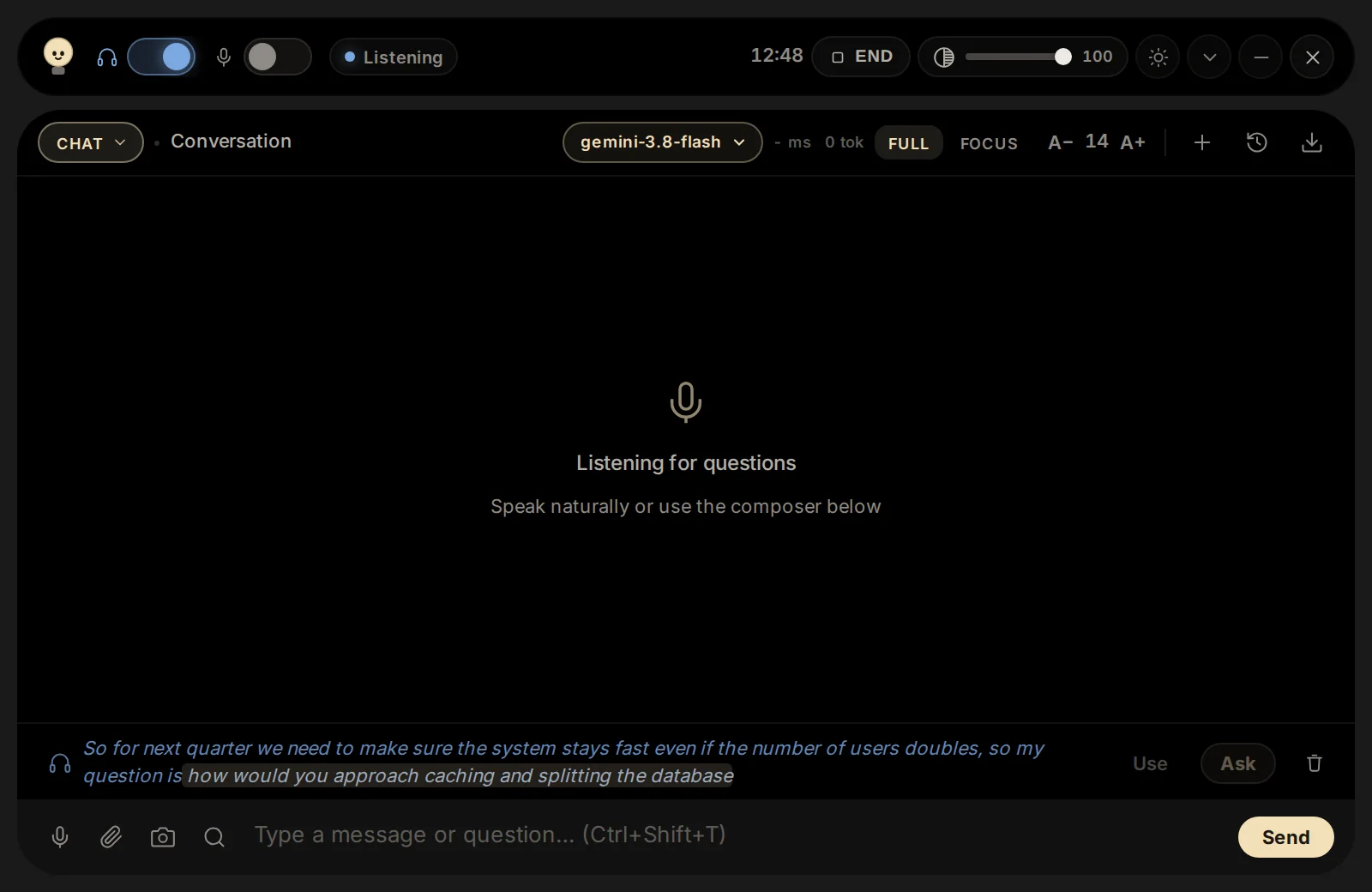
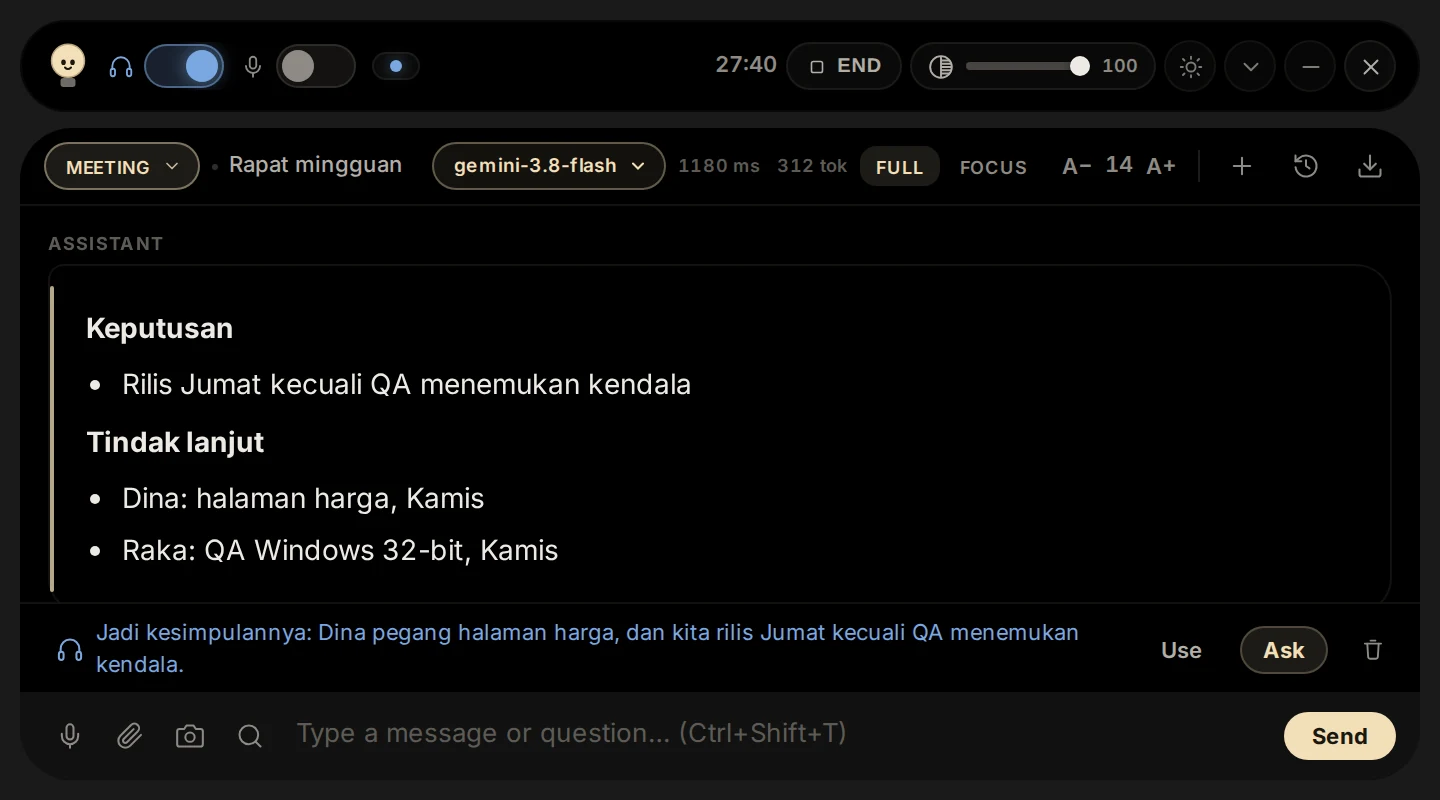
What was heard. Speech appears in the blue row above the input box, newest words always in view (the start fades out on long sentences). Use puts it in the input box so you can edit it; Ask sends it right away; the bin discards it.
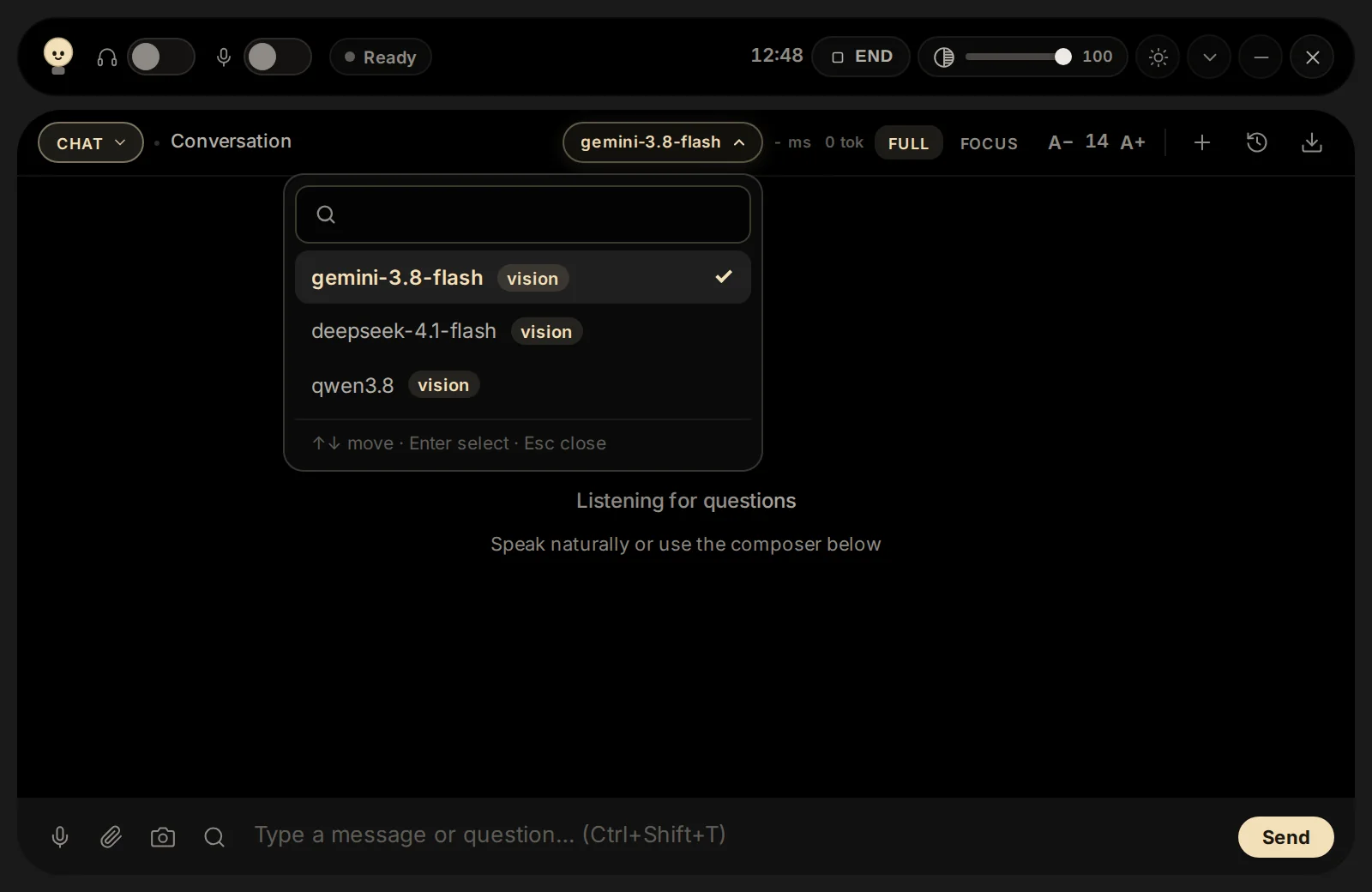
Switching the model. Click the model name at the top of the panel, type to search, and pick another. The next question uses it; it stays your choice next time.
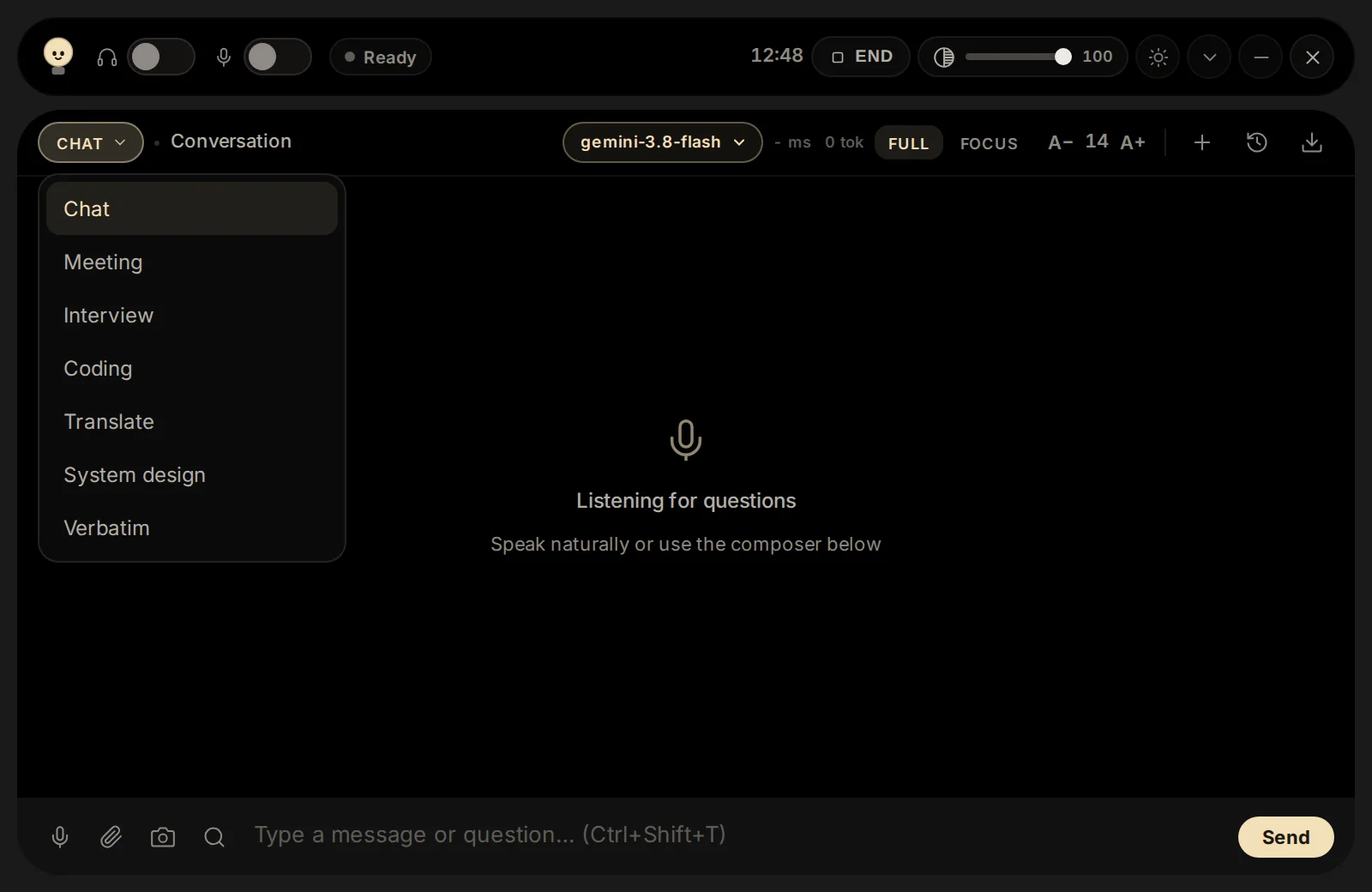
Switching the mode. Click the mode name at the top left of the panel to change mode during a session.
Transcript
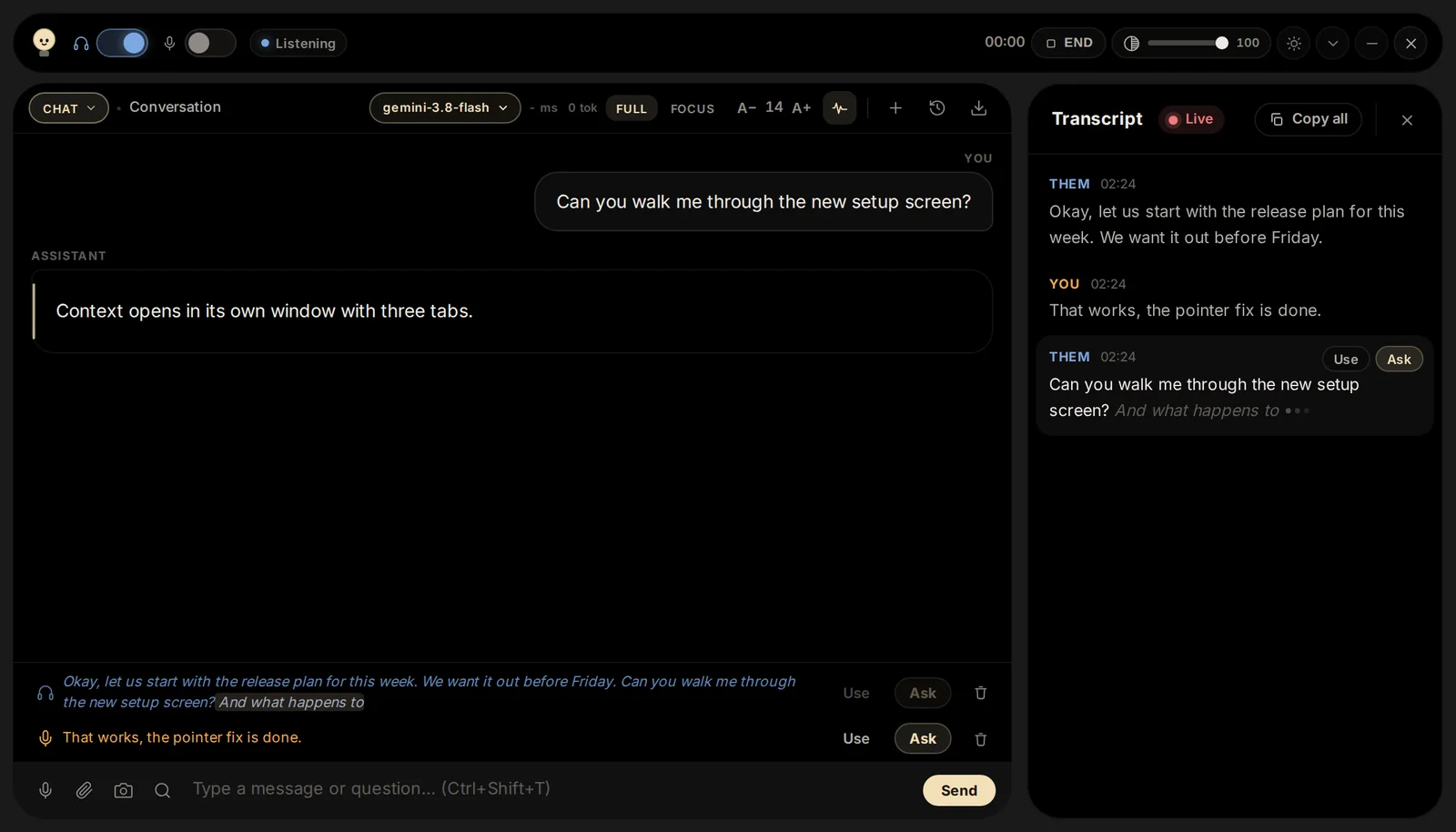
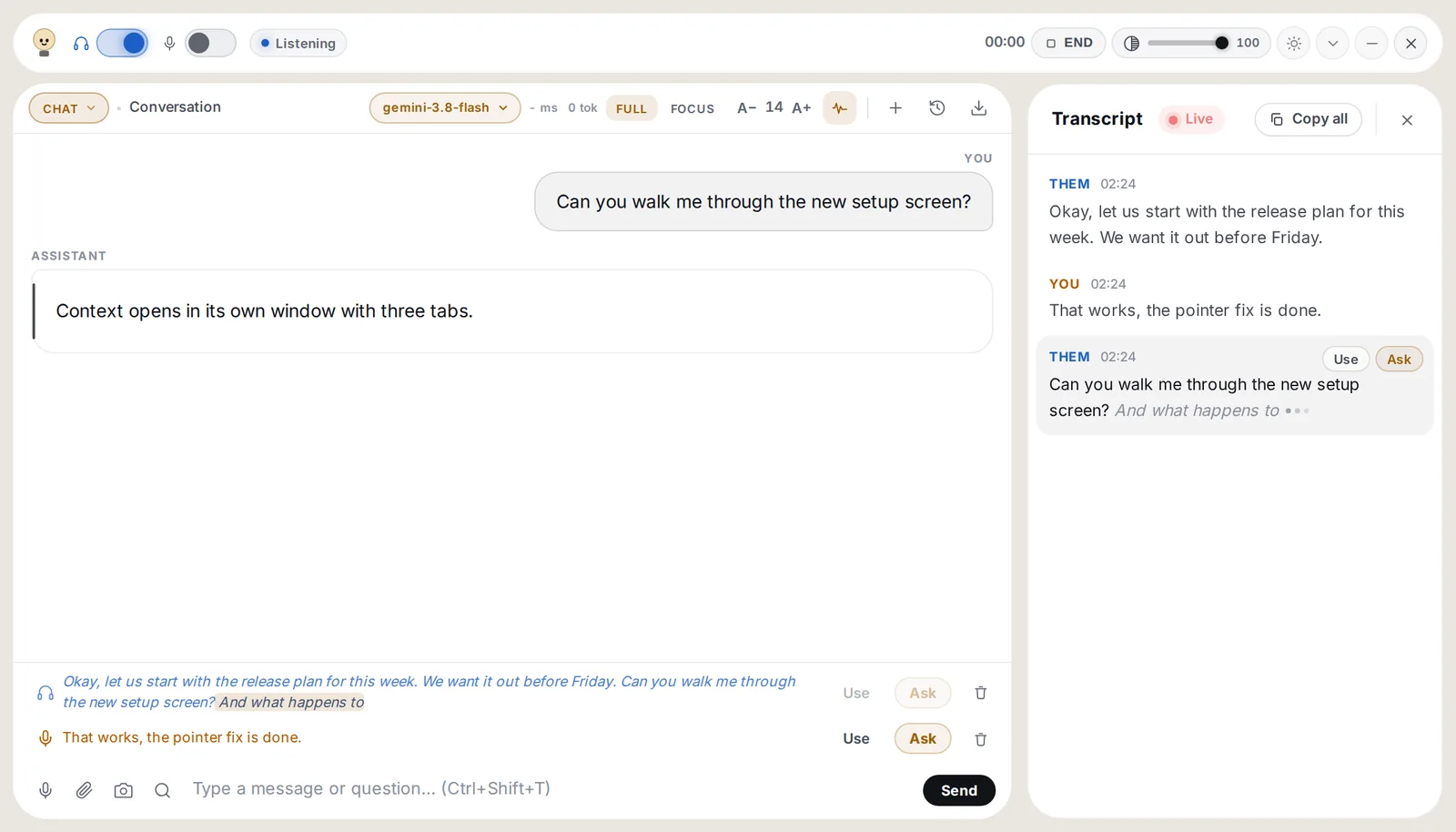
Switch on Show transcript in Setup, then click the waveform button at the top of the panel. The bar widens and the transcript opens beside the conversation (on a narrow screen it opens over it). Nothing in it is saved; for a transcript you keep, use Verbatim.
The transcript beside the answers. What was said, in paragraphs per speaker (Them in blue, You in orange) with the time; the words still being spoken in grey at the end. Point at a paragraph for Use (into the input box) or Ask (sent straight away), so you can ask about any line, not only the last. Copy all copies it; if you scroll up to read, a New lines button takes you back down.
Keyboard shortcuts
Ctrl+Shift+HShow or hide the bar
Ctrl+Shift+TType a message
Ctrl+Shift+AAsk with what was heard
Ctrl+Shift+SCapture the screen and ask about it
Ctrl+Shift+LPause or resume listening
Ctrl+Shift+XEnd the session
Ctrl+Shift+OOpen Setup
Ctrl+Enter / TabIn the input box: ask with what was heard / take it in to edit
On macOS use Cmd instead of Ctrl.
04Modes
Each mode gives Cuelight different instructions, so the same question gets a different kind of answer. Pick one in Setup, or switch from the mode menu on the bar.
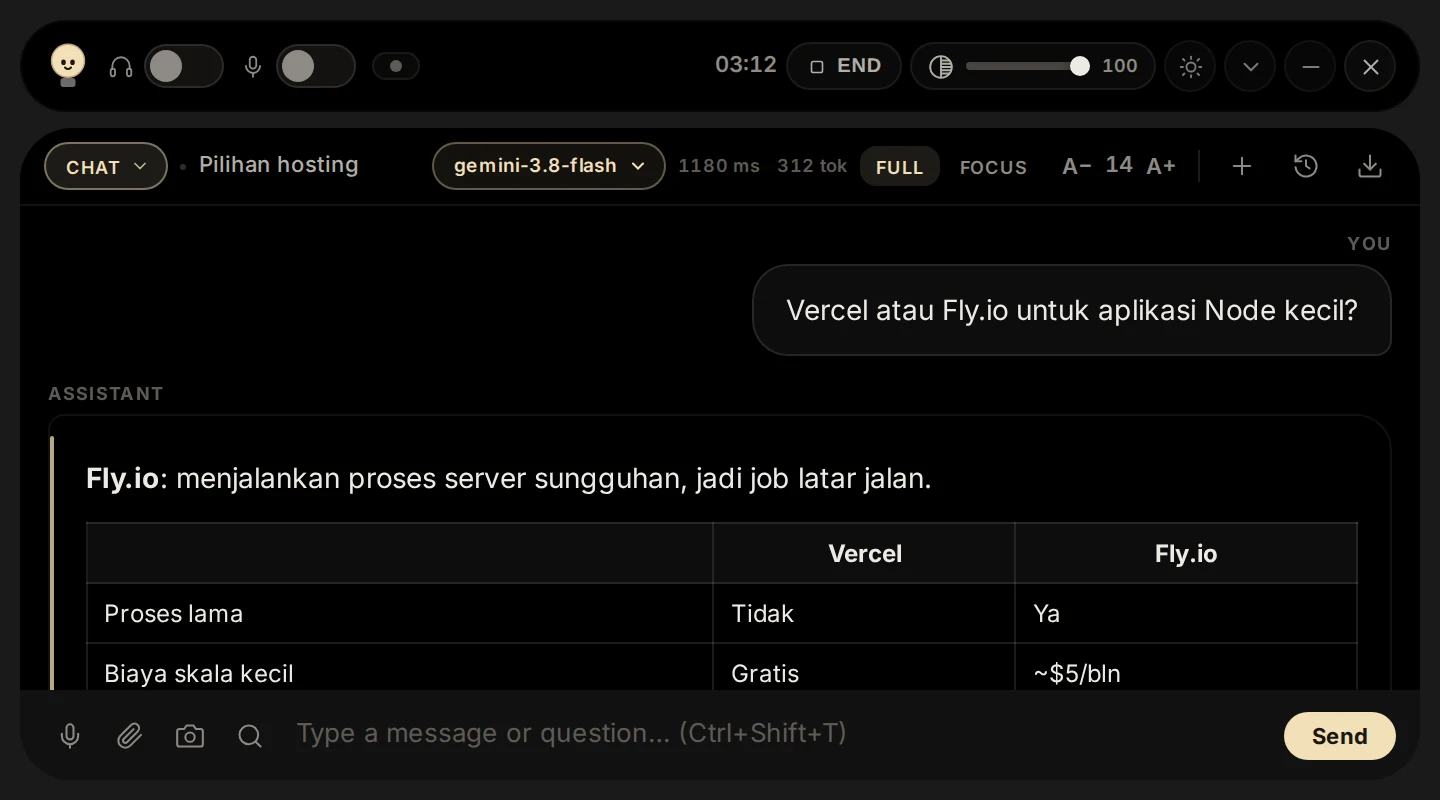
A general assistant for anything you want to ask: a quick fact, an explanation, a comparison, a draft.
When to use it
You want an answer without a special format
You are not in a call and just type a question
You want to ask about something on your screen
How to use it
Pick Chat in the mode menu at the top left of the panel.
Type your question in the box at the bottom and press Enter. Or say it with the microphone, or press the camera button to send what is on your screen.
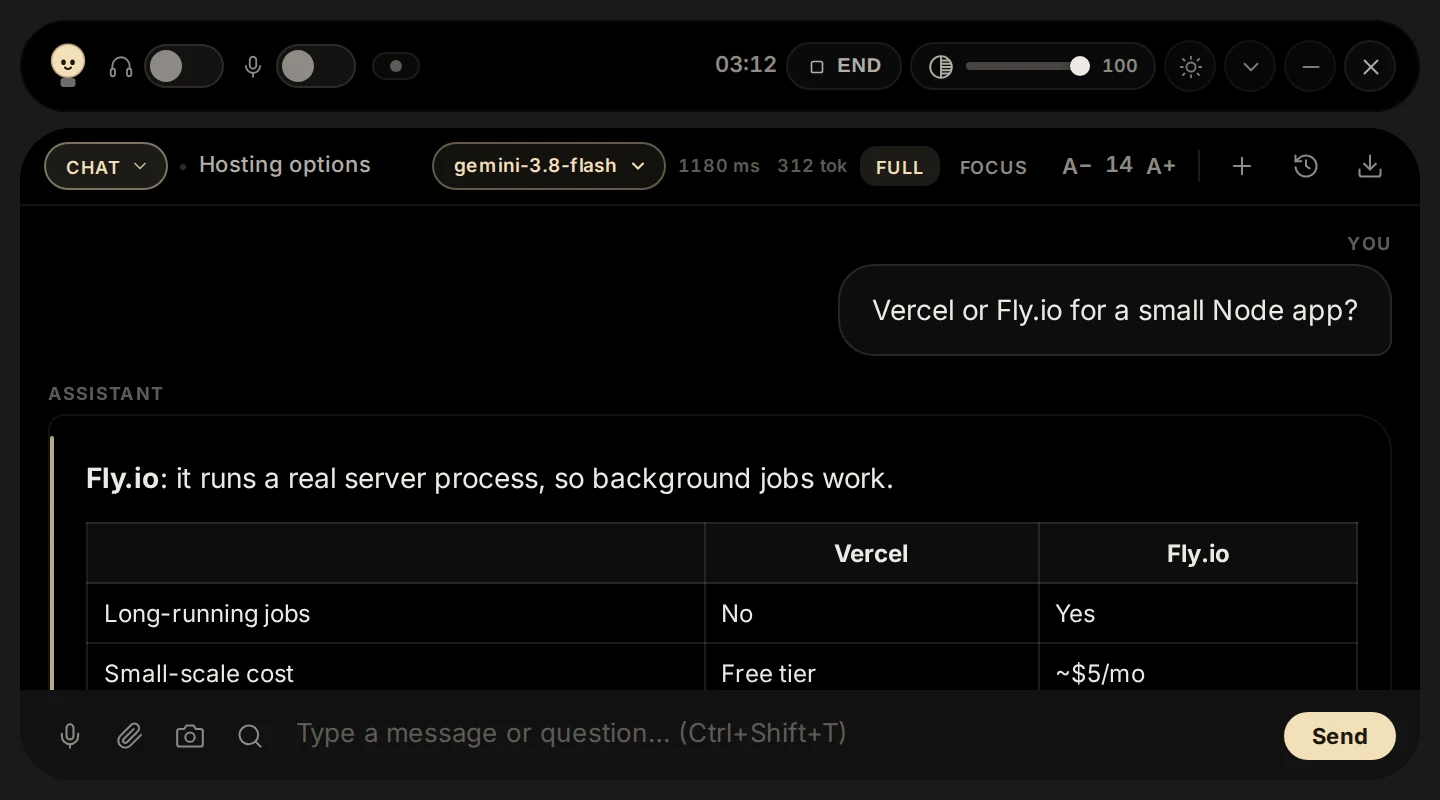
The answer appears in short paragraphs, with lists or a table when that is clearer.
Try saying
"Vercel or Fly.io for a small Node app?"
Tip: Attach a file (paperclip) or a screenshot (camera) and ask about it in the same message.
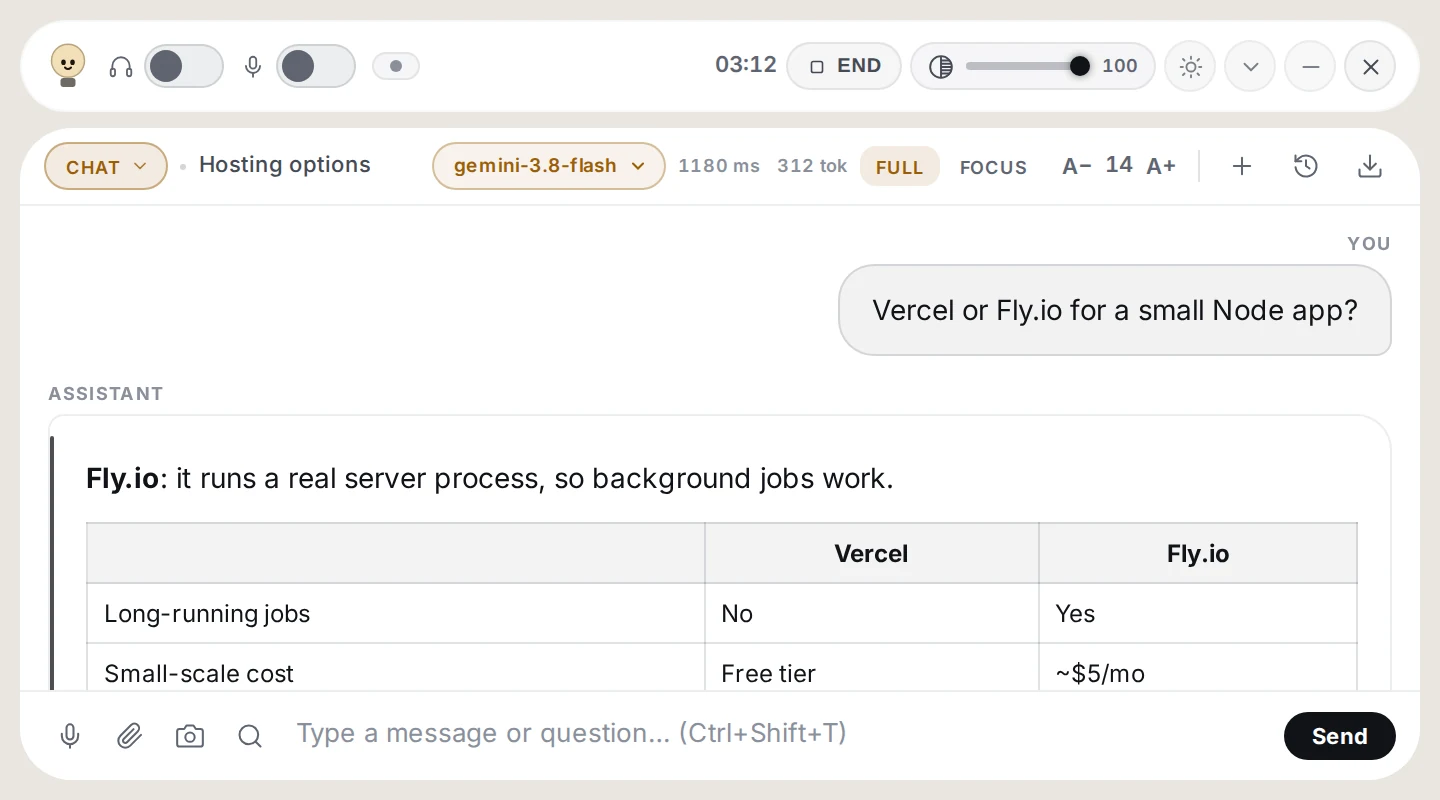
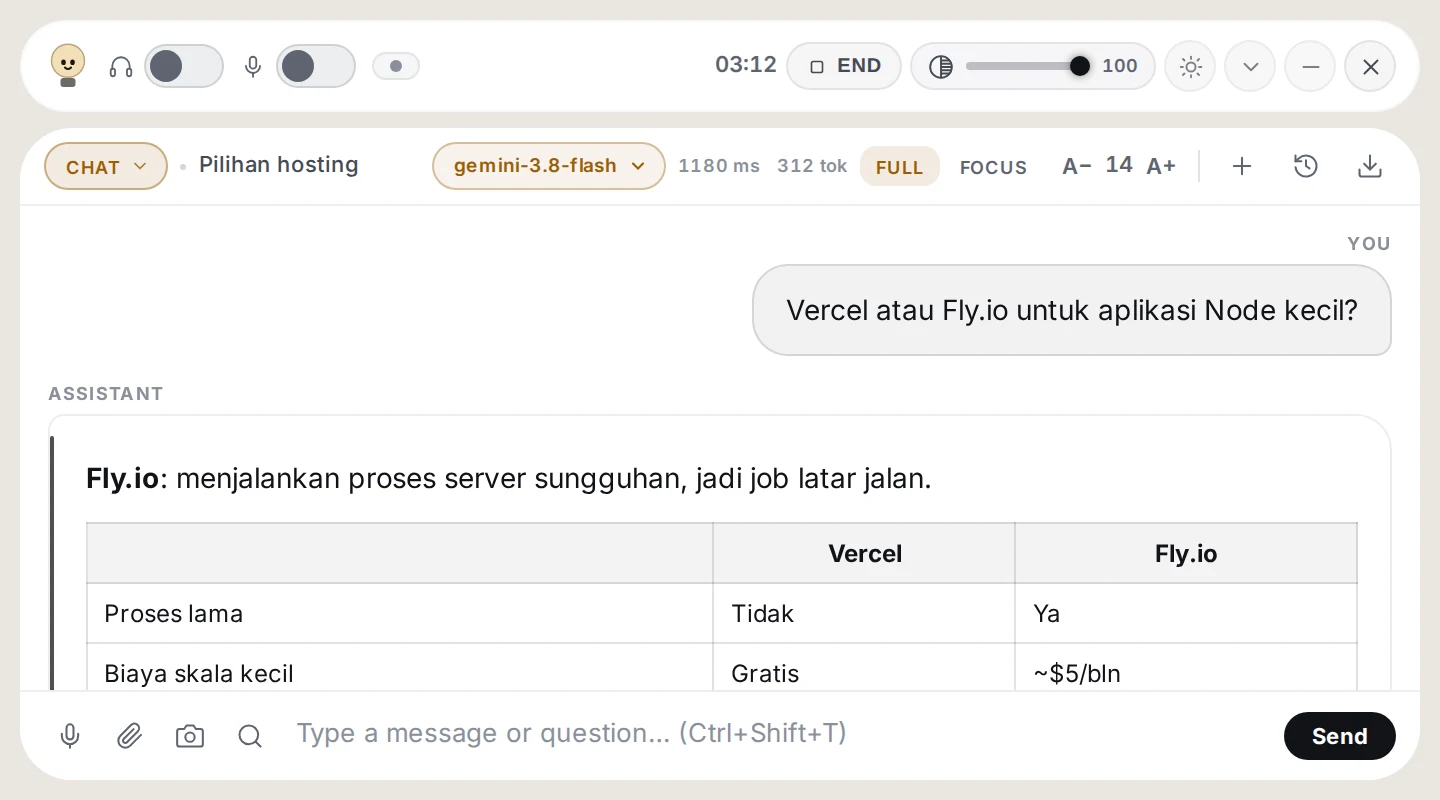
Chat mode, as it looks on the bar. A general assistant for anything you want to ask: a quick fact, an explanation, a comparison, a draft.
Meeting
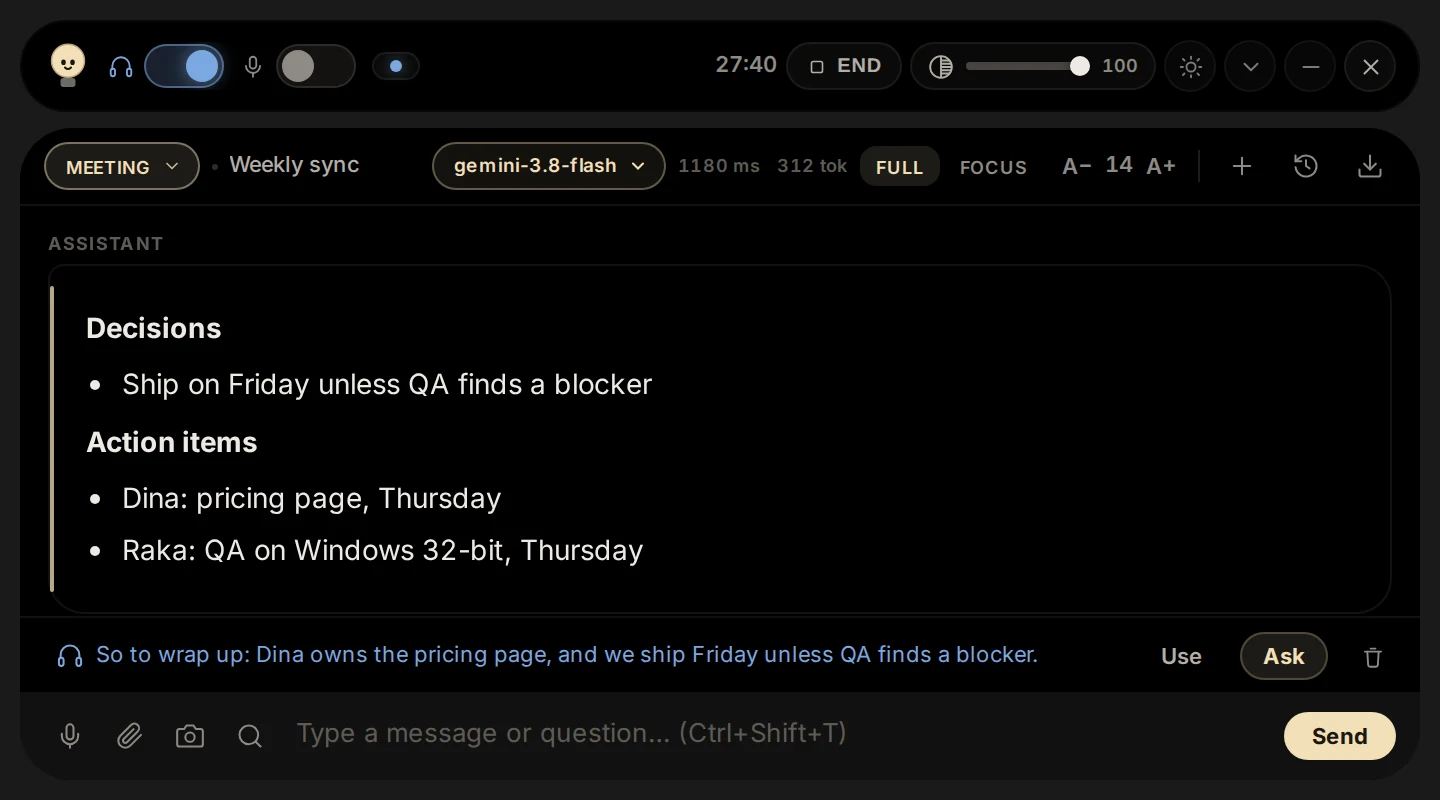
For meetings and calls. When someone asks you something, it drafts a short reply you can say in your own words. Ask for a summary and you get decisions, action items and open questions.
When to use it
Team meetings, client calls, stand-ups
You need a reply ready when a question comes your way
You want a summary at the end
How to use it
Pick Meeting, then switch on Listen (the headphone switch) so Cuelight hears the call.
What is said appears in the blue row above the input box. When a question is aimed at you, press Ask (or Ctrl+Enter) to get a reply to say.
Type "Summarise the meeting so far" at any time for Decisions, Action items and Open questions.
Try saying
"Summarise the meeting so far." or "What did we decide about the launch date?"
Tip: Cuelight never invents what was not said: anything it is unsure of is marked.
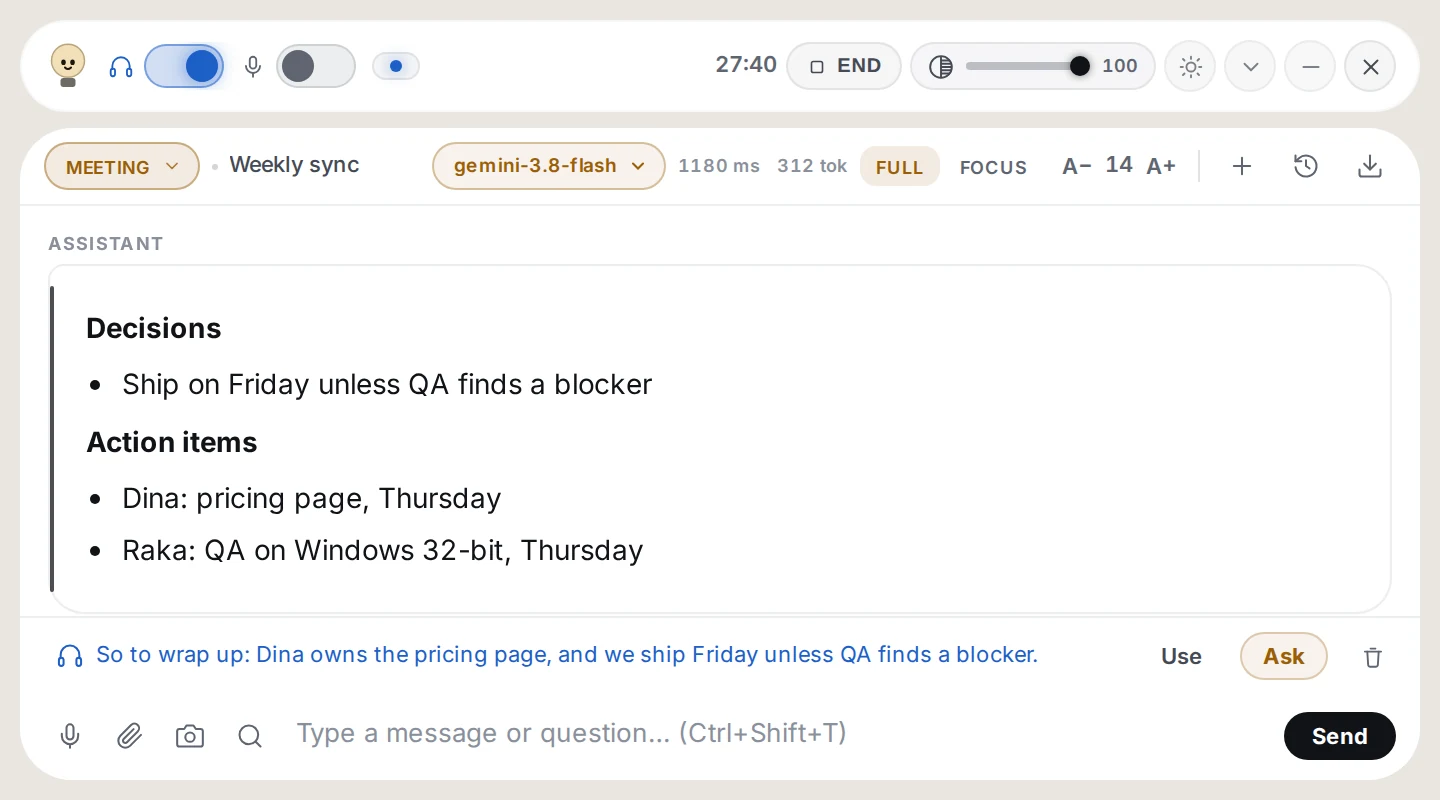
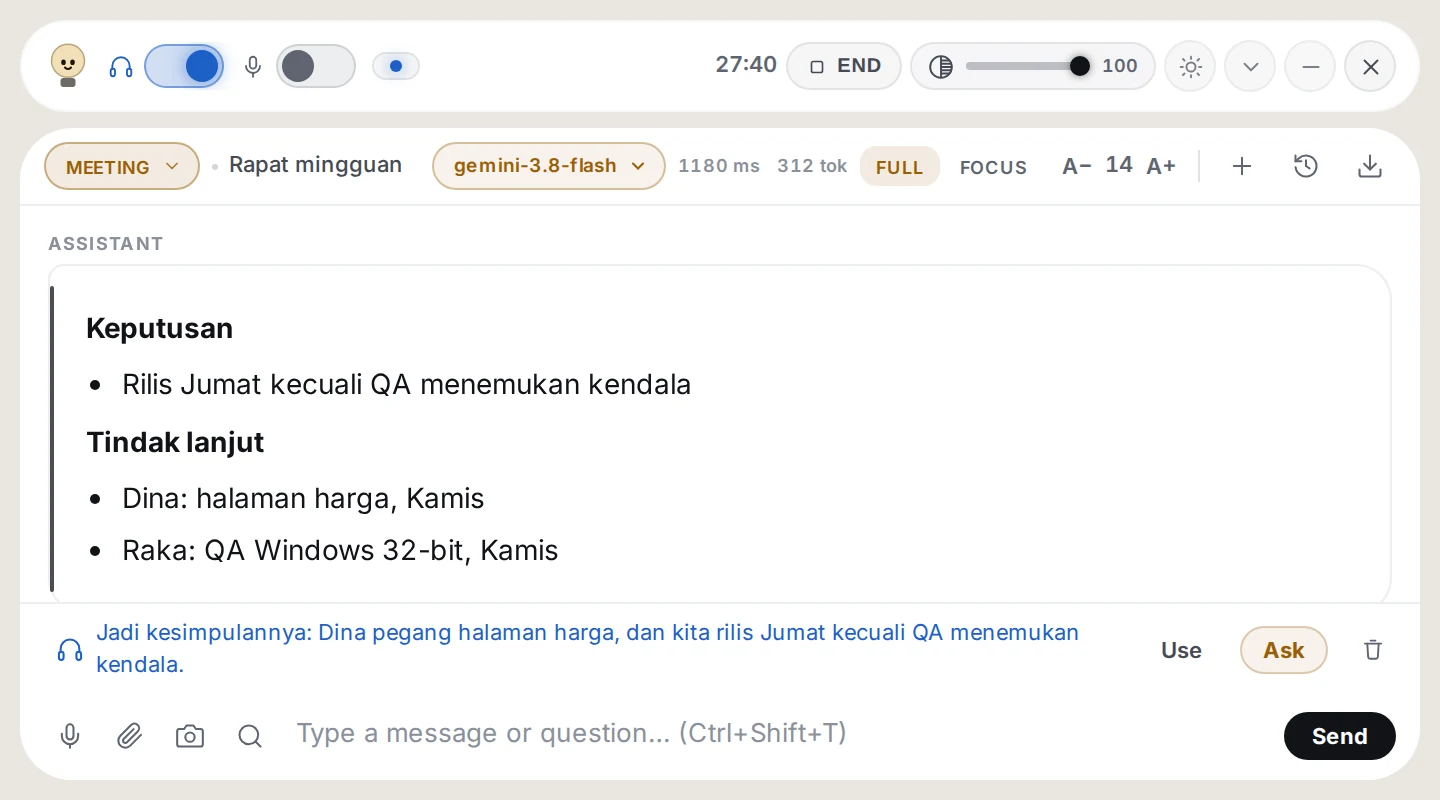
Meeting mode, as it looks on the bar. For meetings and calls.
Interview
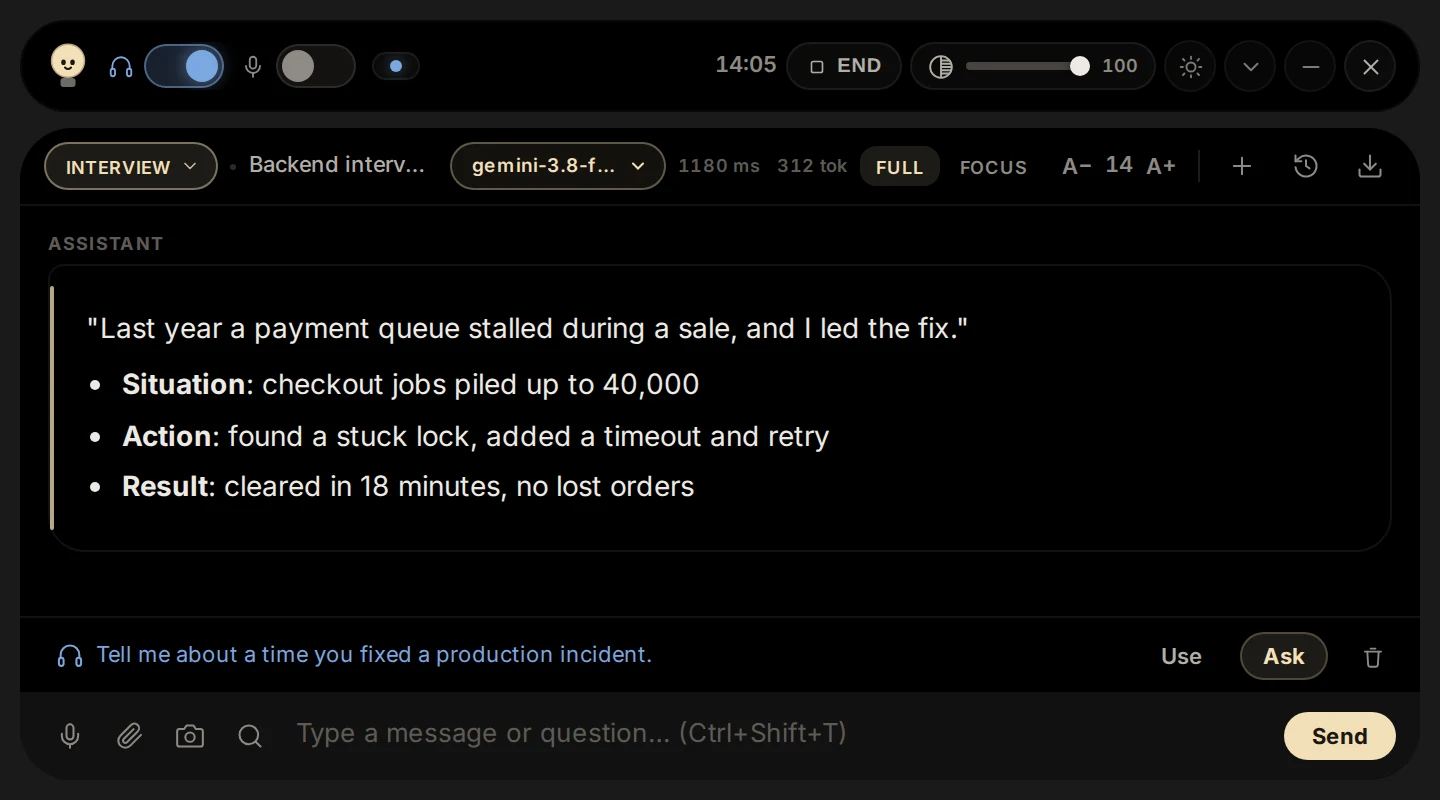
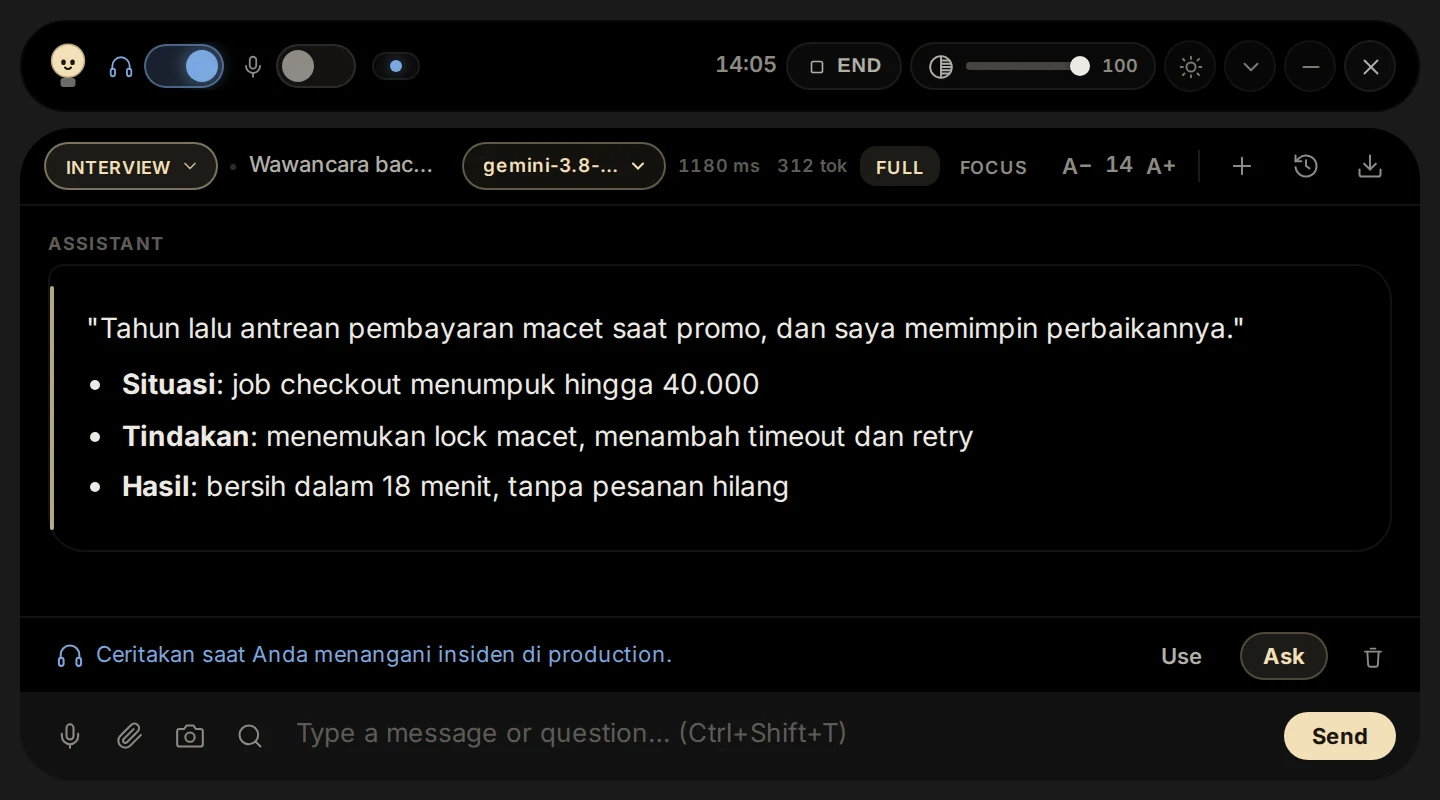
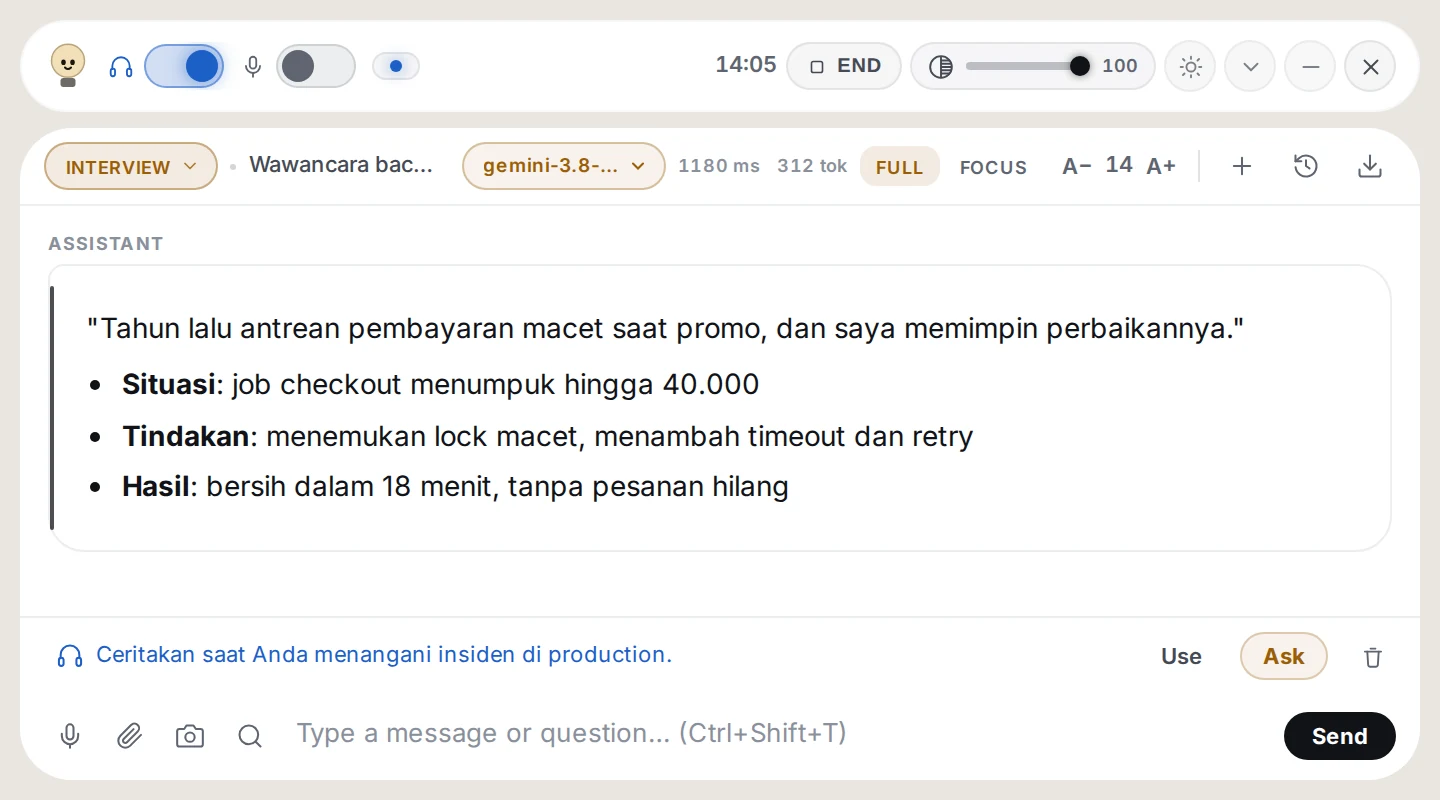
For job interviews. It answers as you would, in the first person: one sentence you can say right away, then the detail. Behavioural questions get the STAR shape (Situation, Task, Action, Result), based on your resume and the job description.
When to use it
A real job interview, online
You want answers that fit your own experience and the role
How to use it
Before you start, open Setup, Context > Edit > Interview: upload your resume and paste the job description.
Pick Interview and switch on Listen.
The interviewer's question appears in the blue row. Press Ask and read the opening sentence while the rest arrives.
Try saying
"Tell me about a time you fixed a production incident."
Tip: Put the words in your own voice. Press Ctrl+Shift+H to hide the bar at any time.
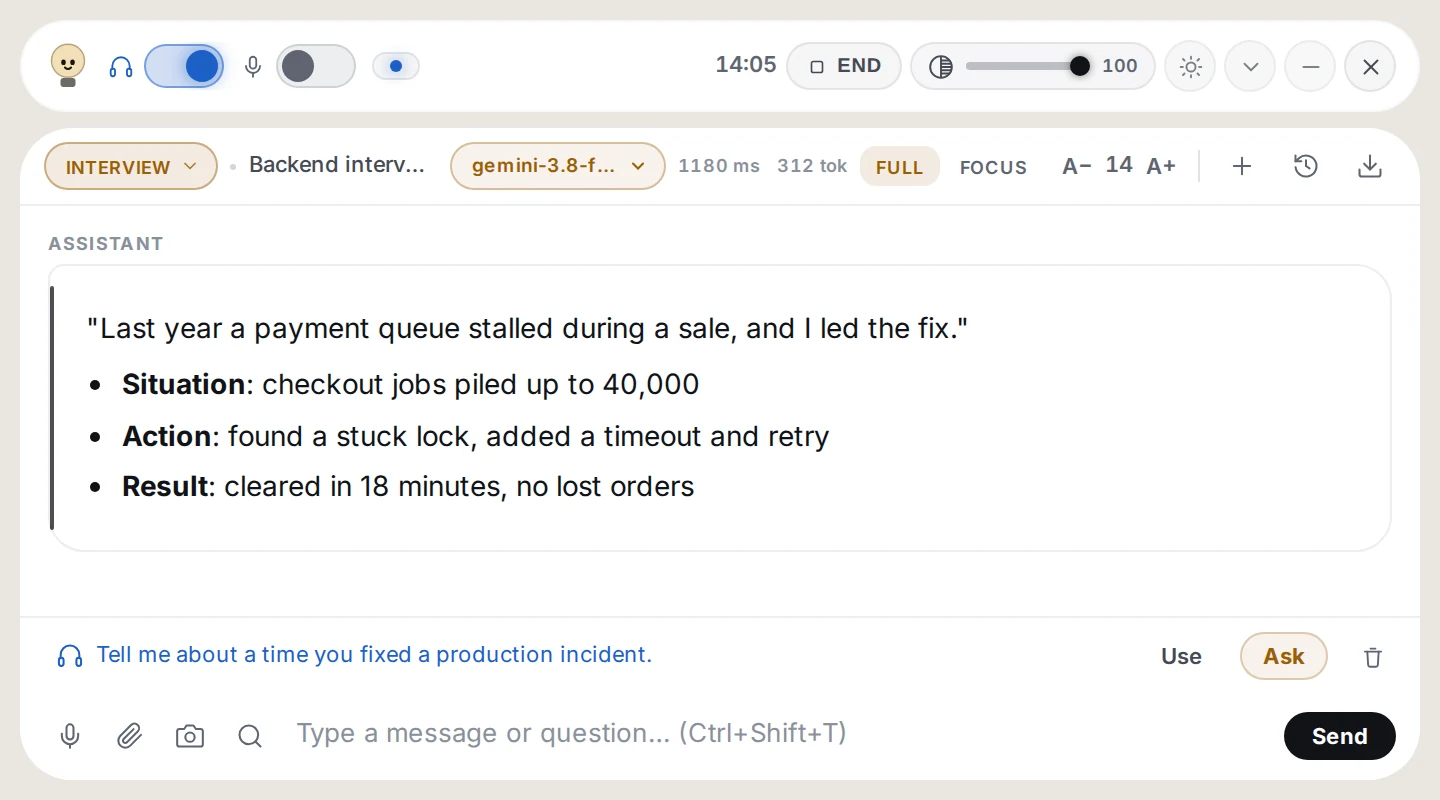
Interview mode, as it looks on the bar. For job interviews.
Coding
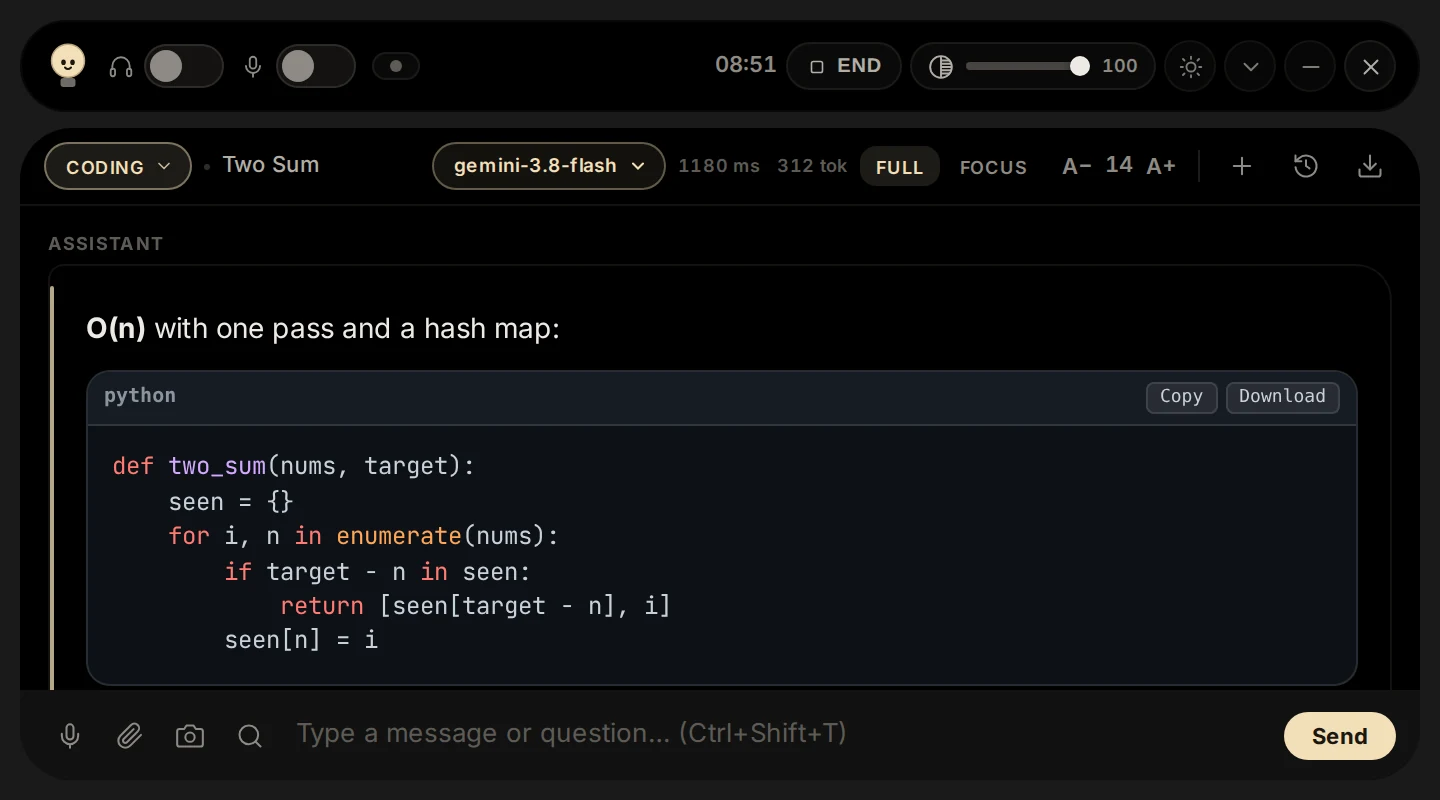
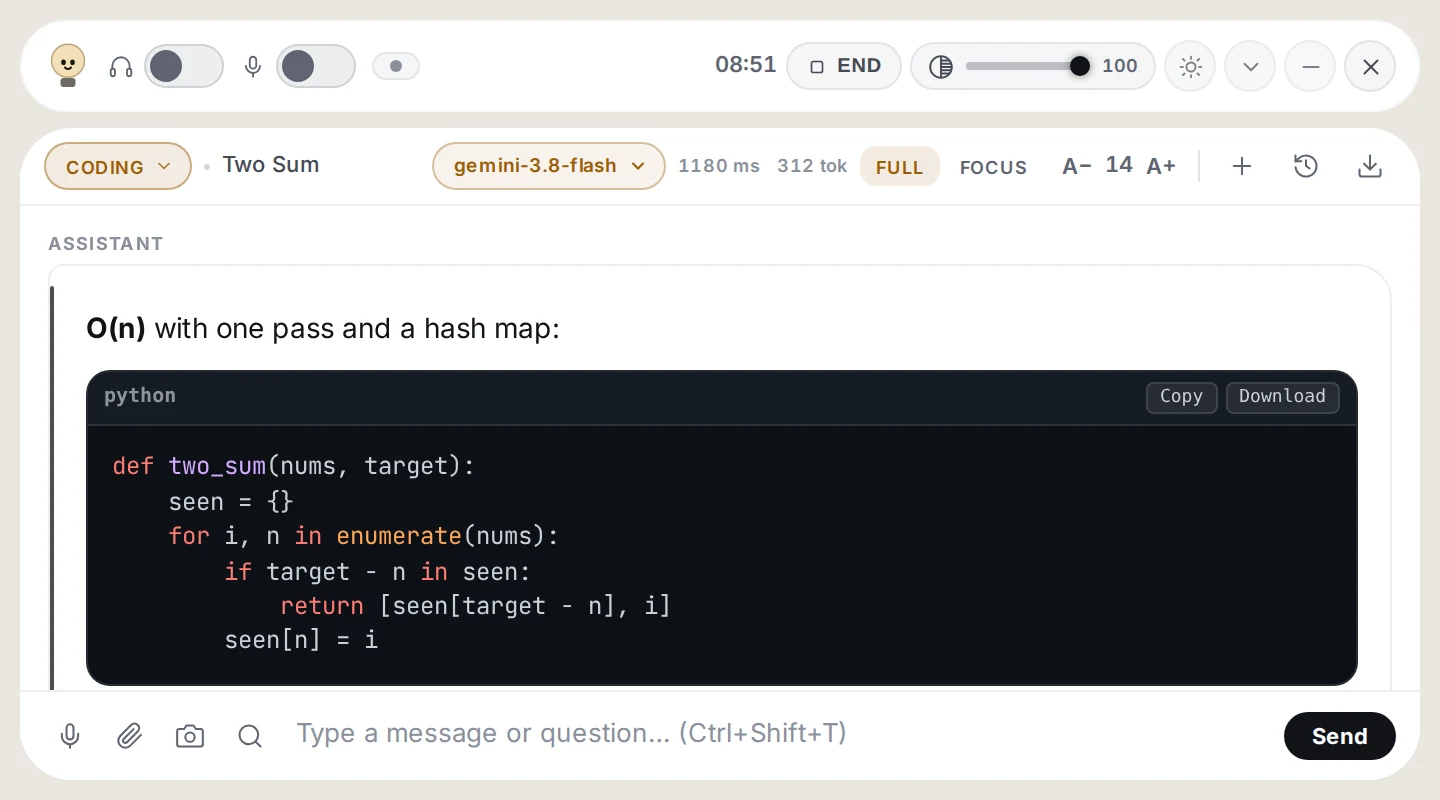
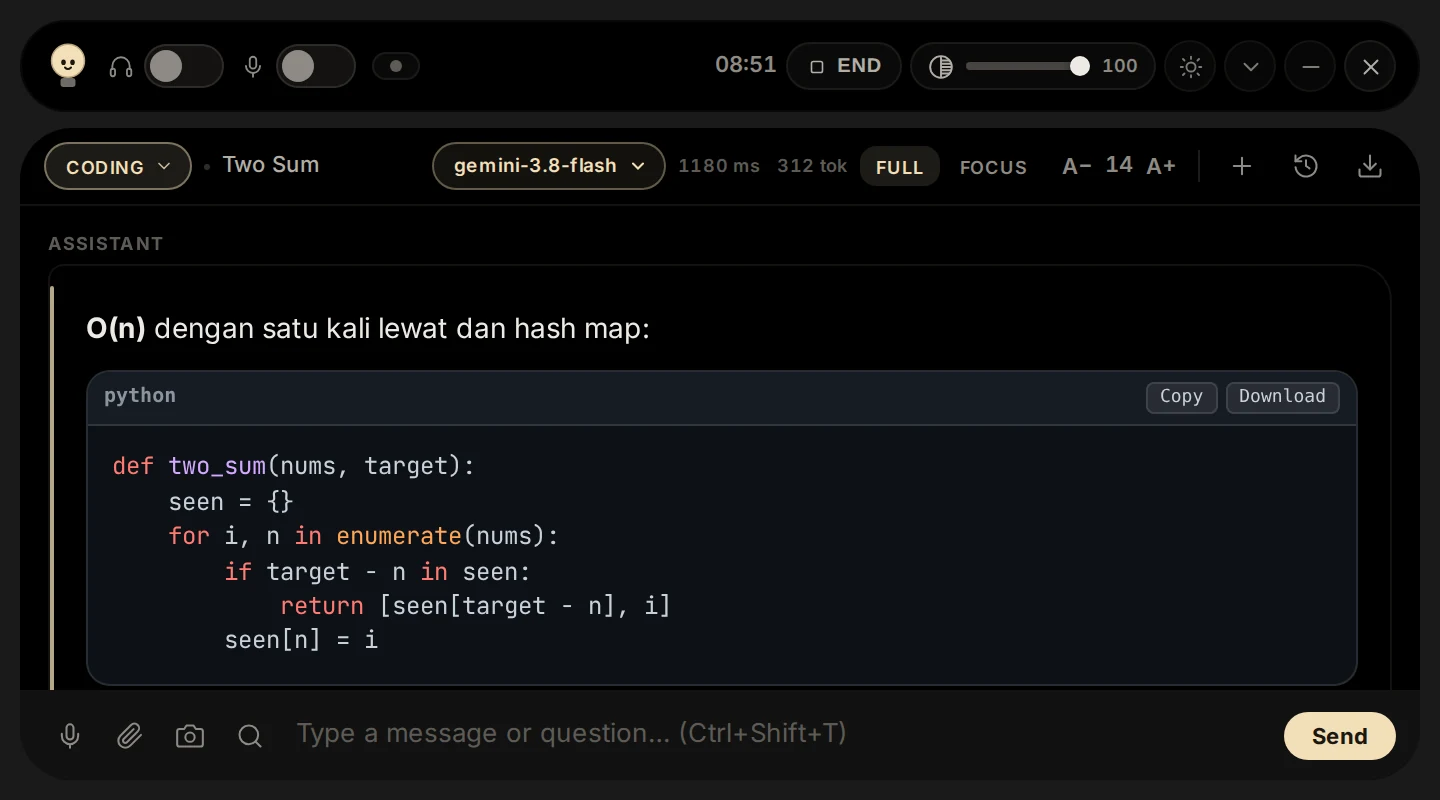
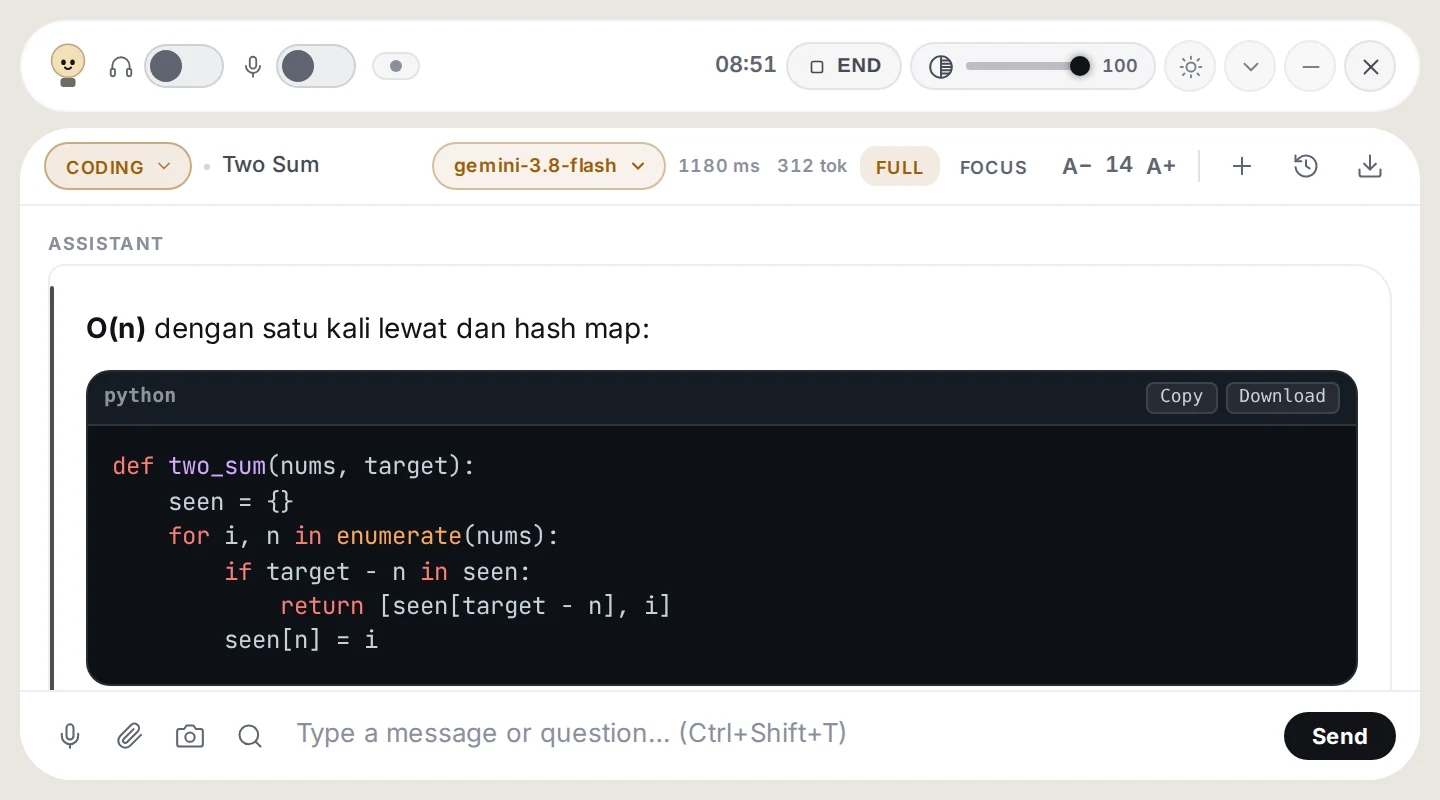
For programming questions and coding interviews. Answers follow a fixed shape: understanding, approach, complexity, the complete code, test cases, edge cases and how to optimise.
When to use it
A coding interview or live coding test
You are stuck on a bug or an algorithm
You want code you can copy straight away
How to use it
Pick Coding.
Type or say the problem, or press the camera button to send the problem as it appears on screen.
Use Copy on the code block to take the code.
Try saying
"Two Sum in O(n), Python." or a screenshot of the task
Tip: Use Focus (top of the panel) to see only the answer while you read the code.
Coding mode, as it looks on the bar. For programming questions and coding interviews.
Translate
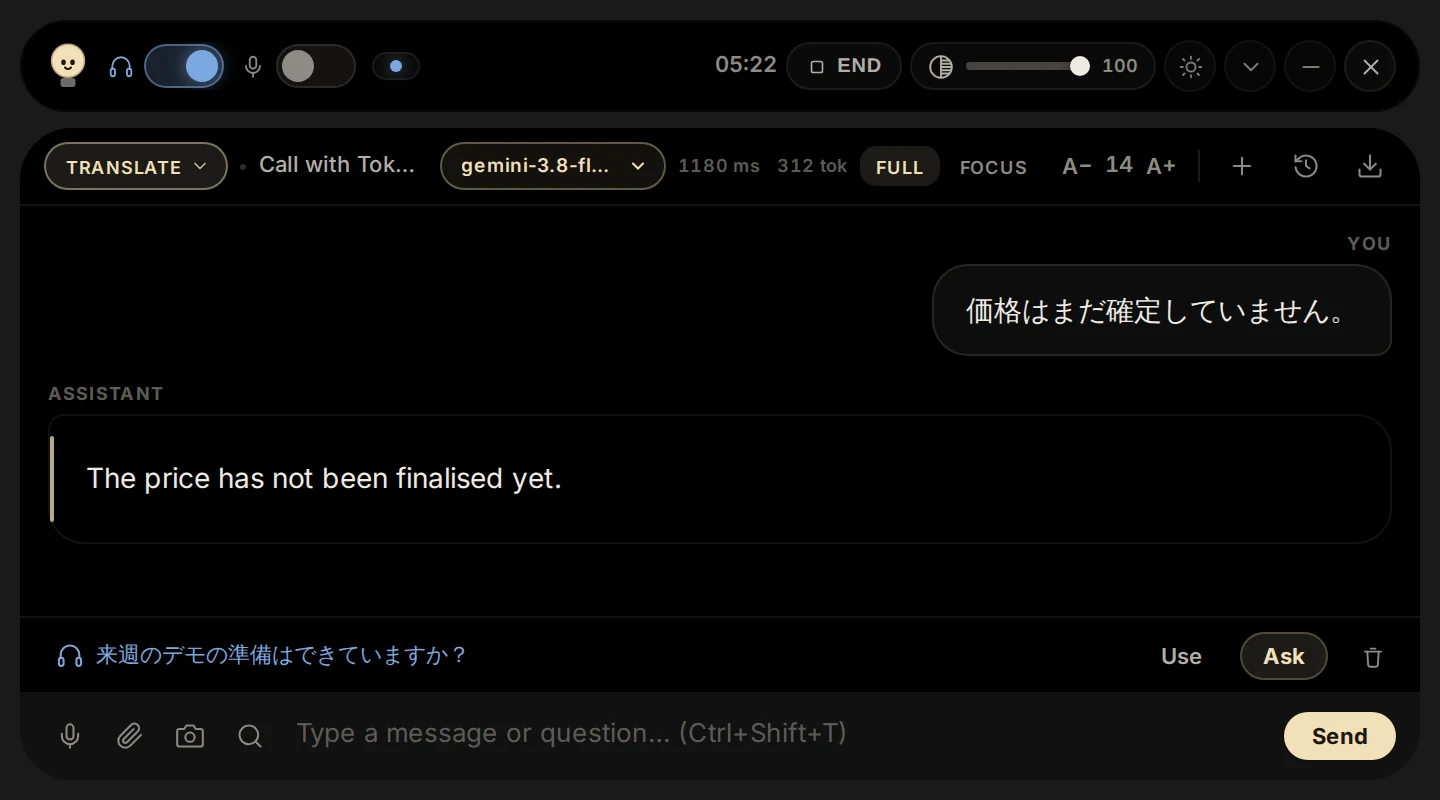
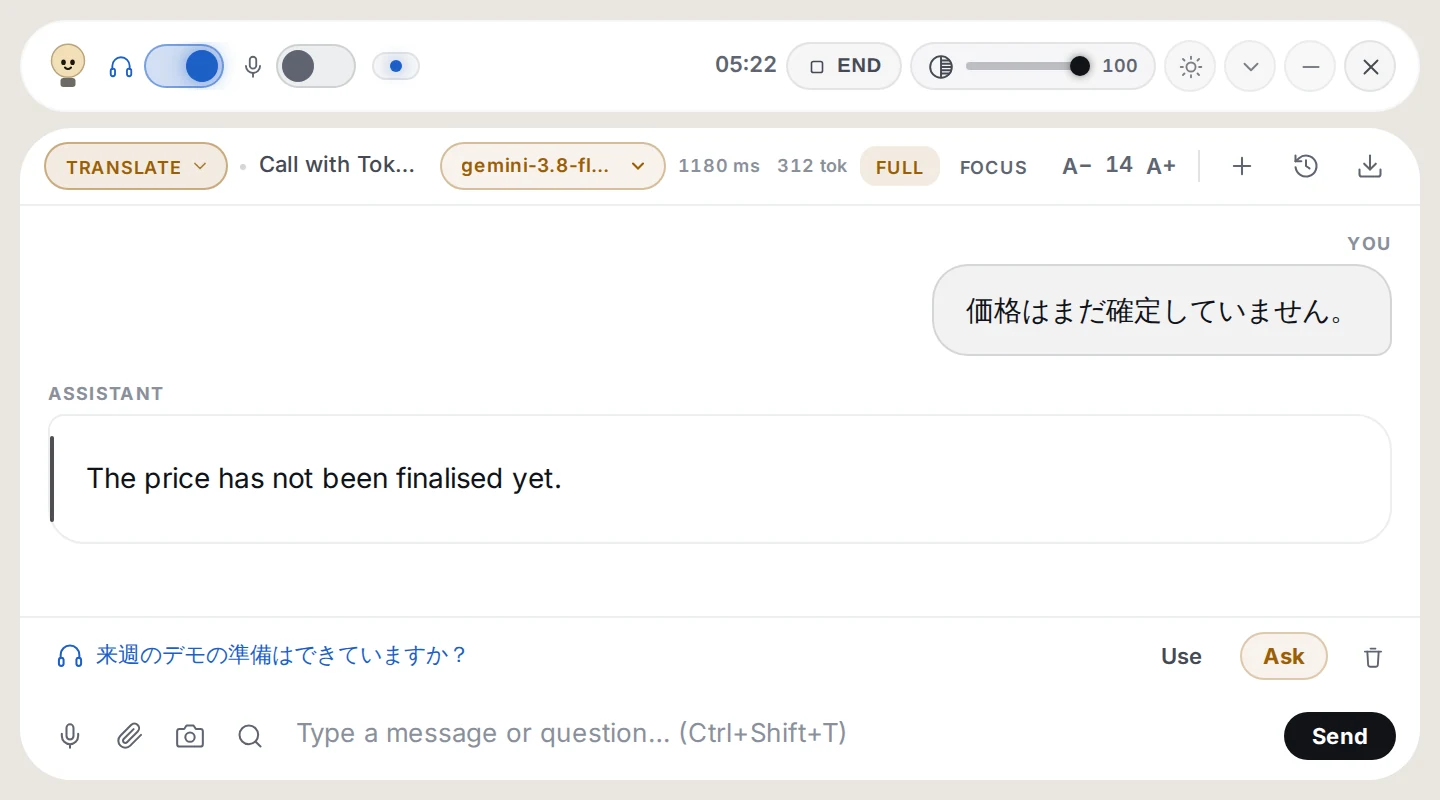
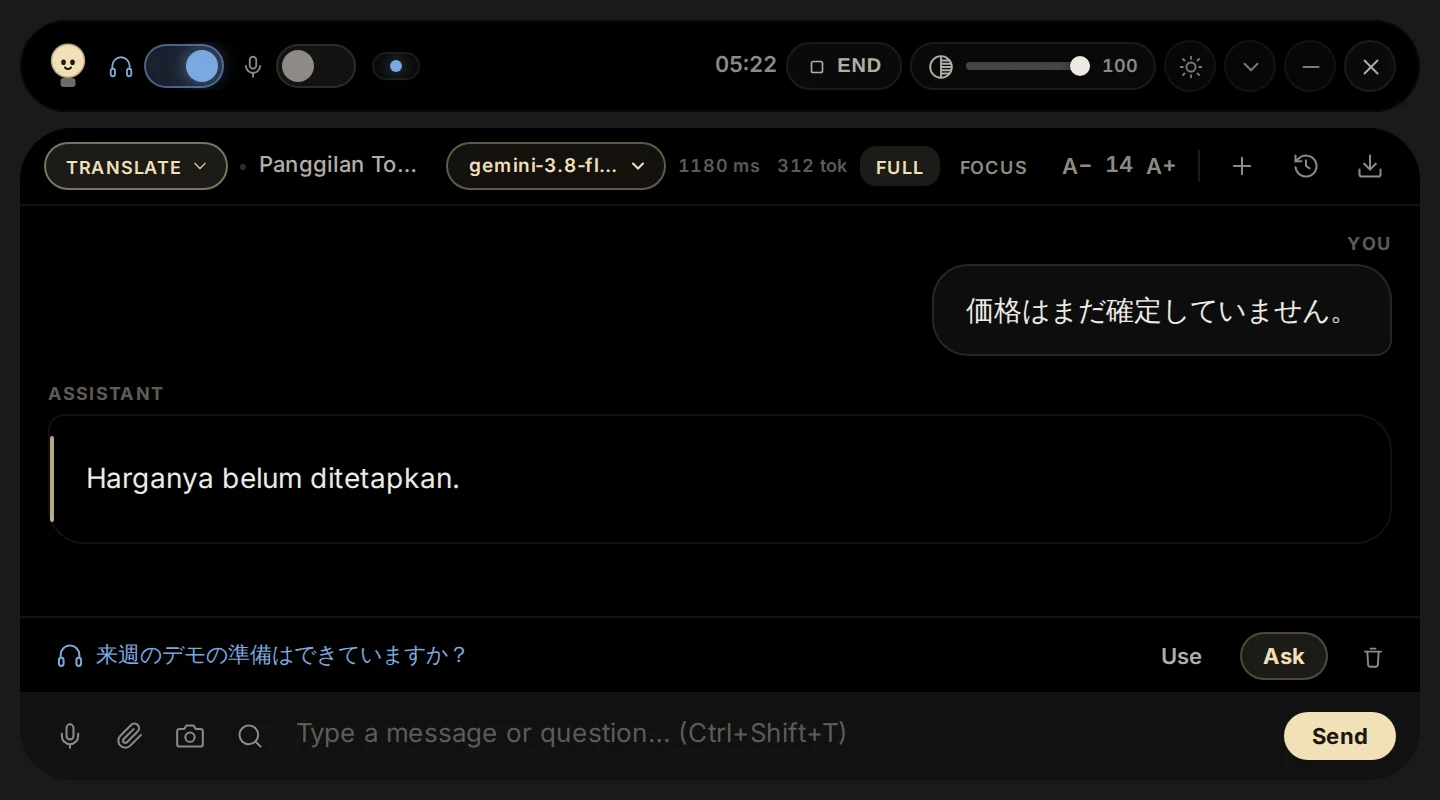
Live translation. What is said is translated into the language you choose, and only the translation is shown. Names, numbers and technical terms stay exact.
When to use it
A call in a language you do not speak well
Reading foreign text on screen
How to use it
In Setup, pick Translate as the default mode and choose Translate into (or leave it on "Same as speech language").
Set Speech language to the language being spoken, for the best transcription.
Switch on Listen, and press Ask on each line you want translated.
Try saying
Heard: "来週のデモの準備はできていますか?" → "Is the demo ready for next week?"
Tip: If the input is already in your target language, it is translated into English instead.
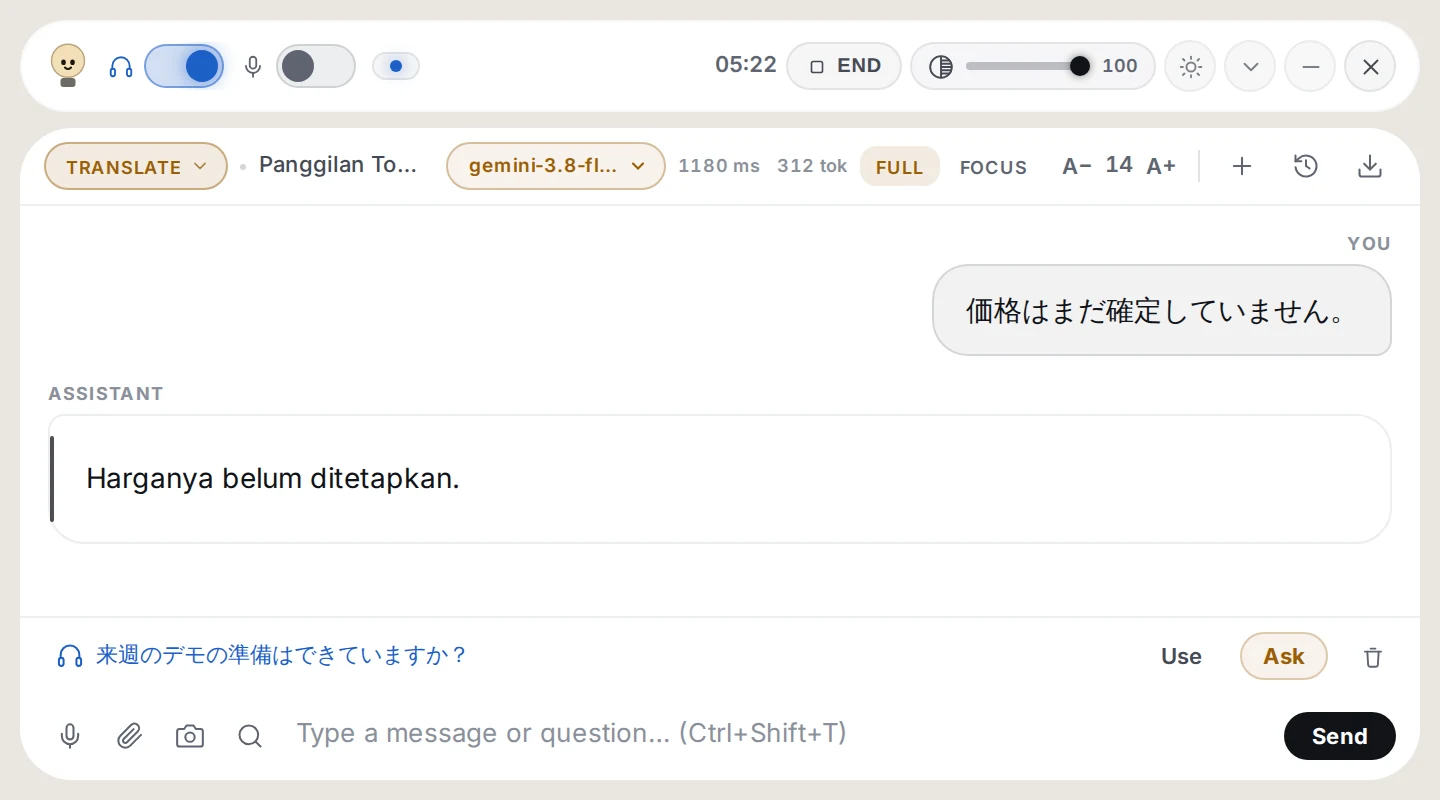
Translate mode, as it looks on the bar. Live translation.
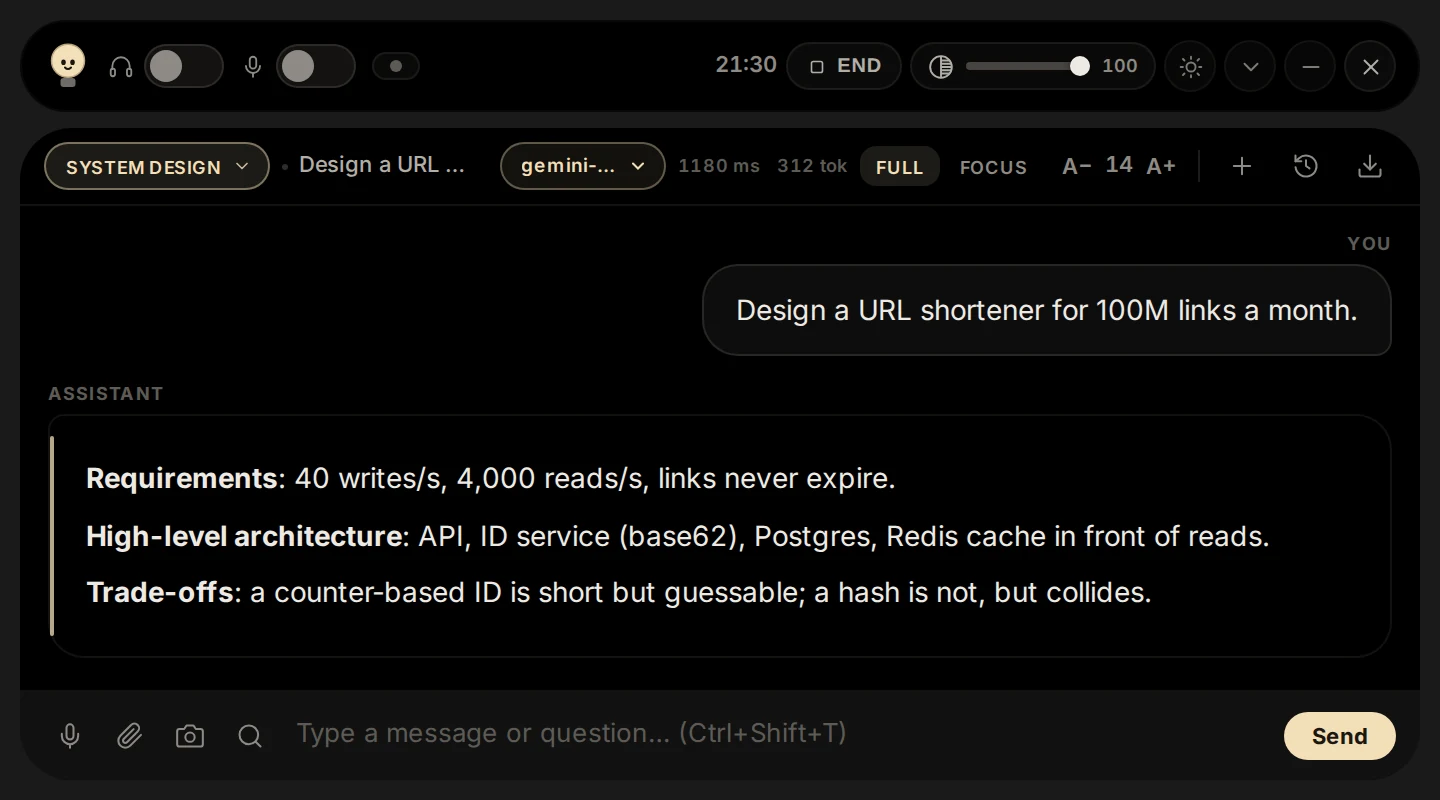
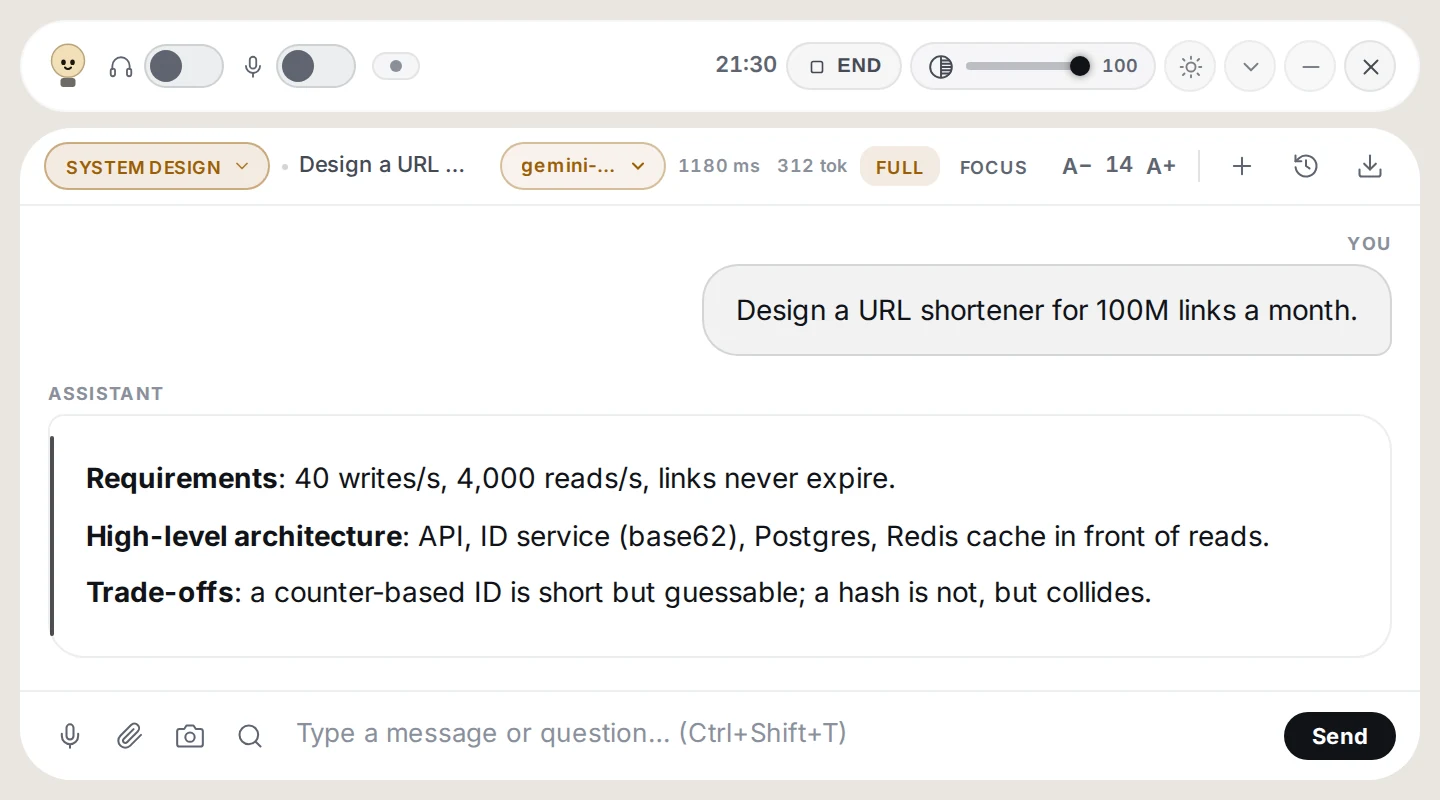
System design
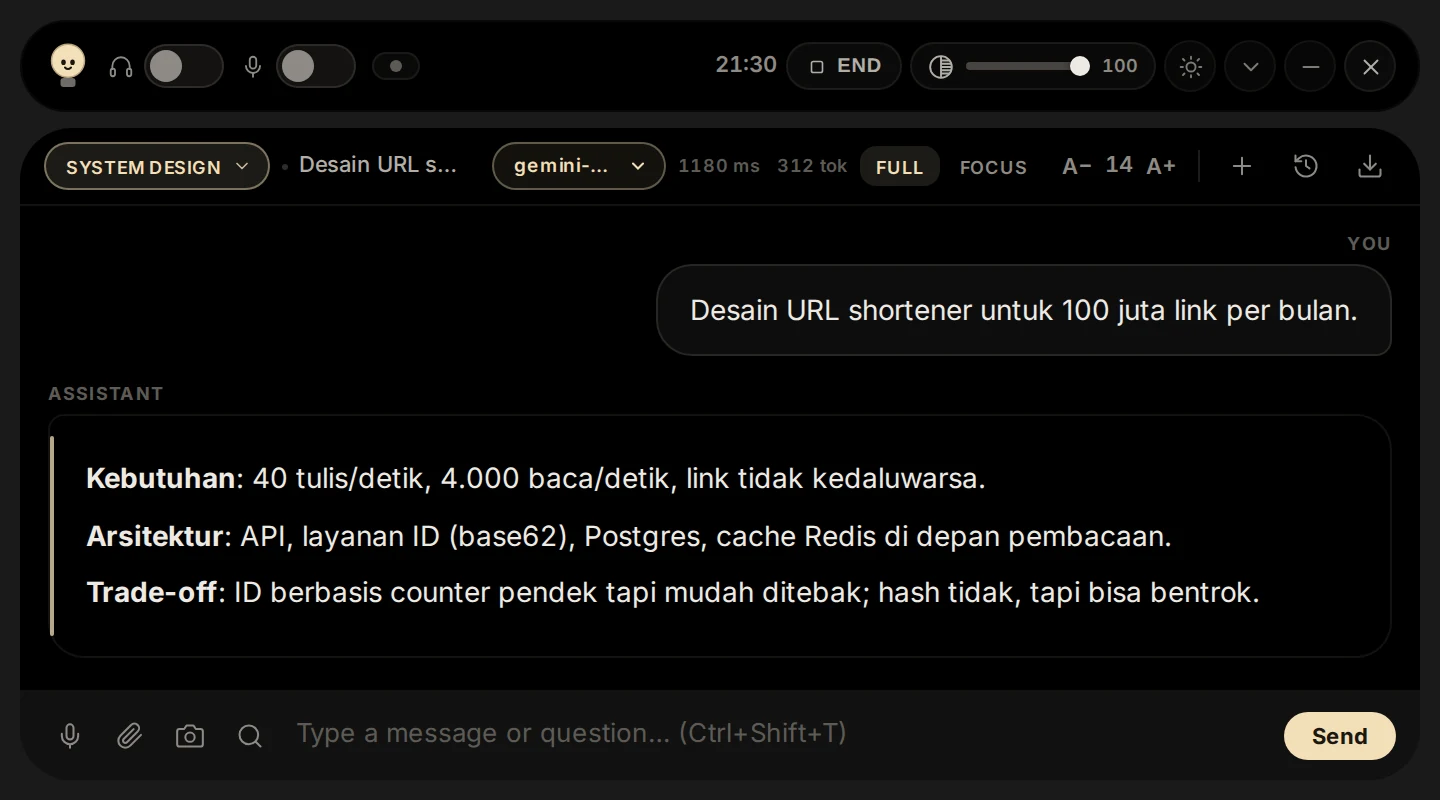
For system design interviews and practice. Answers come in sections: requirements, high-level architecture, components, database, scaling, caching, security and trade-offs.
When to use it
A system design round
Practising how to structure a design answer
How to use it
Pick System design in the mode menu.
Type or say the design question.
Walk through the sections in order; ask follow-ups such as "how would this scale to 10x?"
Try saying
"Design a URL shortener for 100M links a month."
Tip: Add your resume and the job description in Context; this mode uses them too.
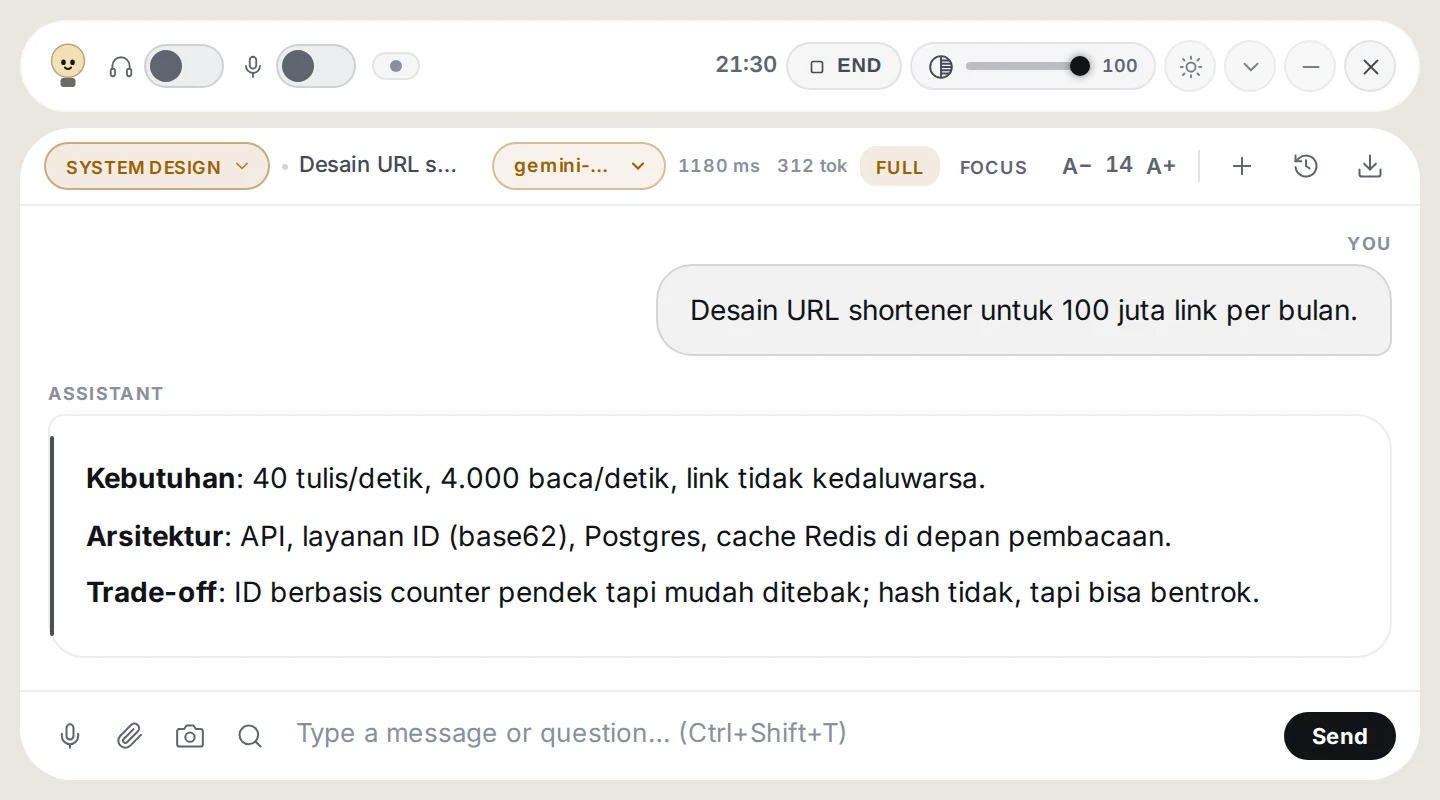
System design mode, as it looks on the bar. For system design interviews and practice.
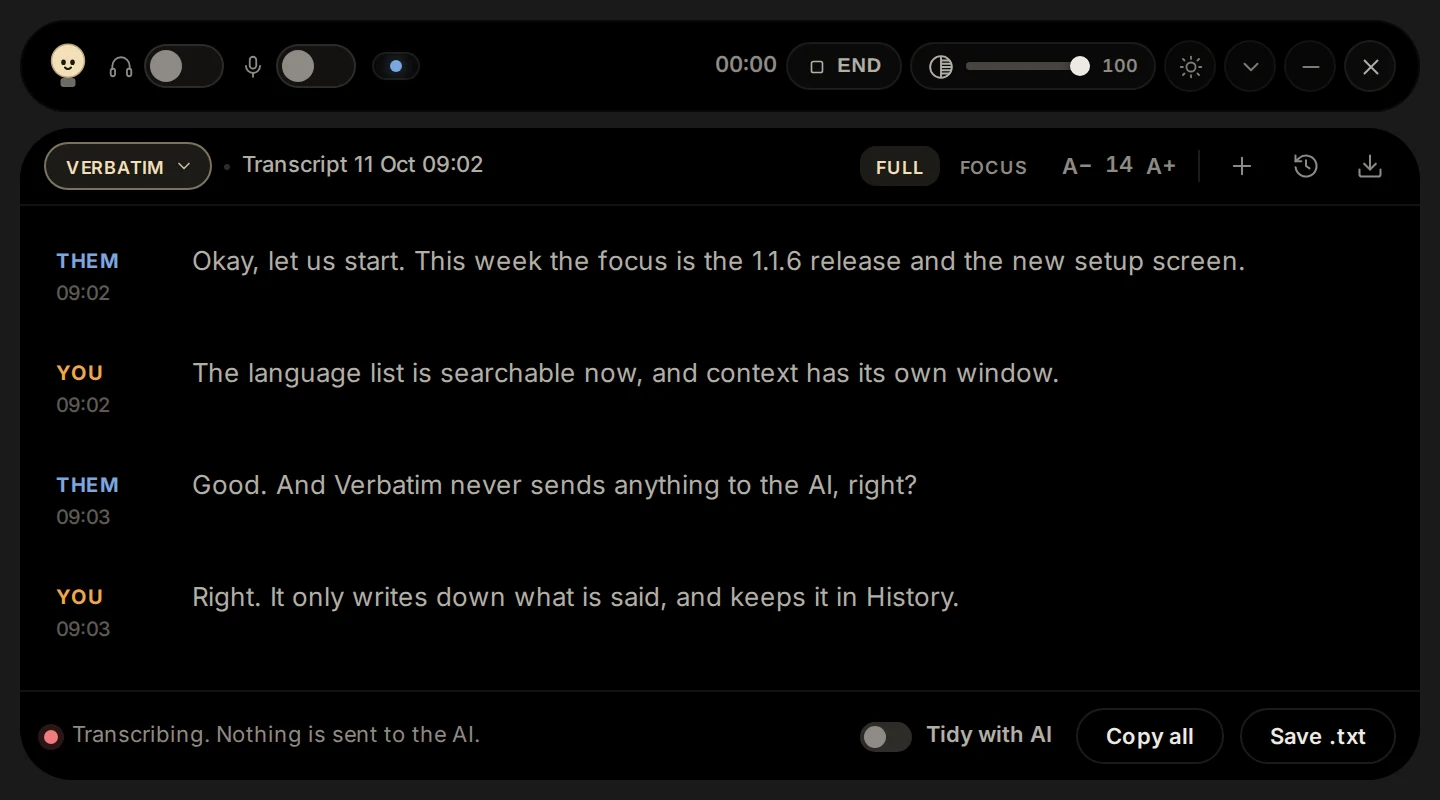
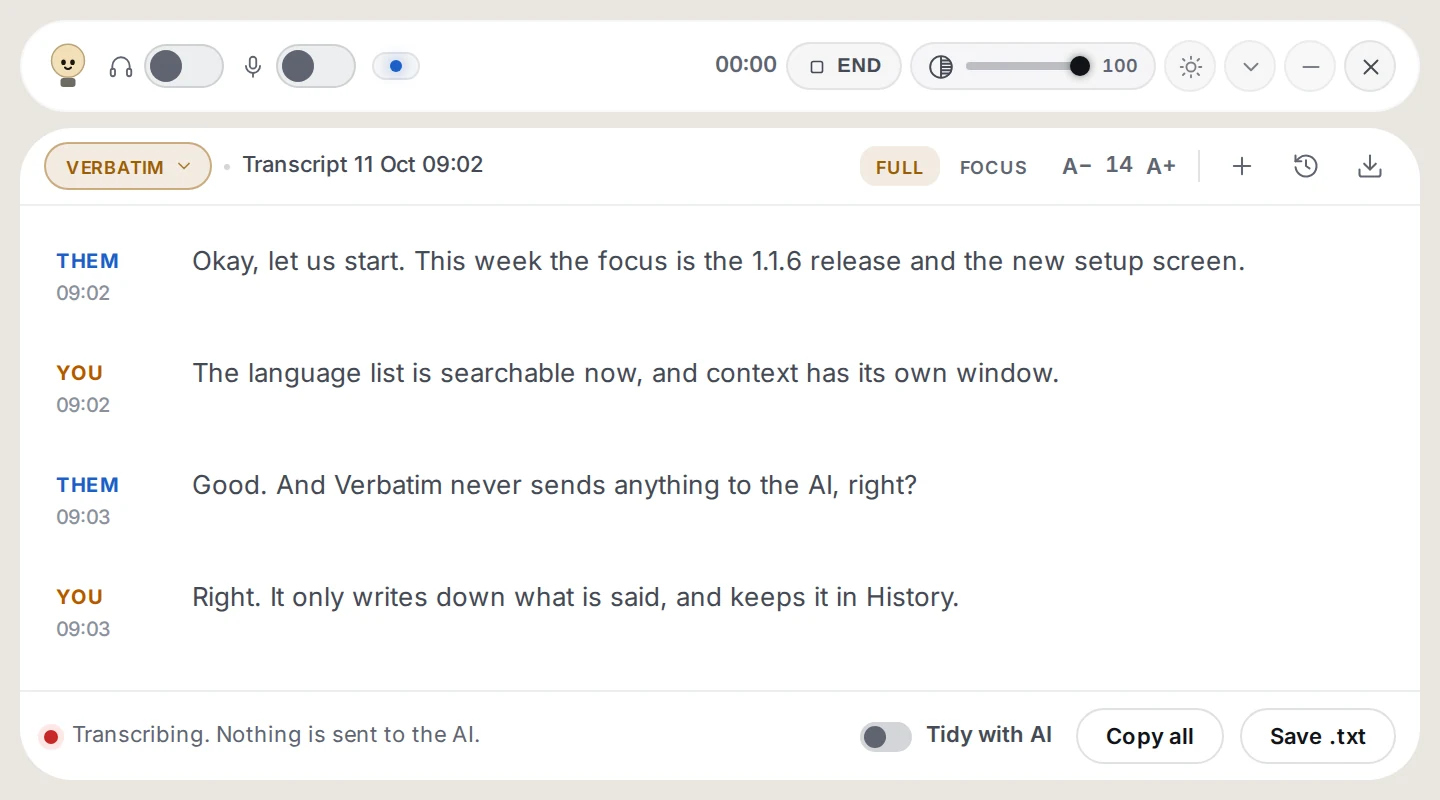
Verbatim
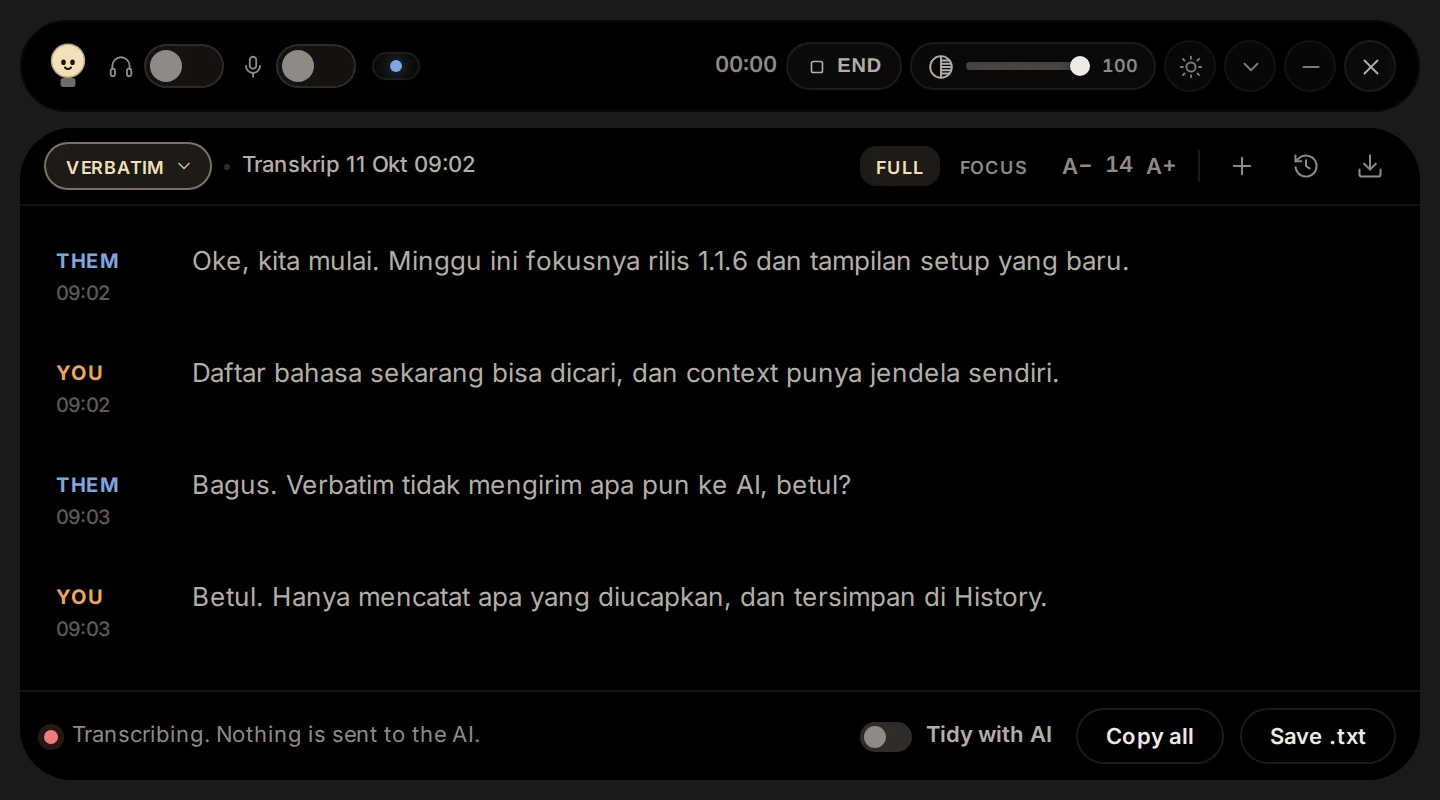
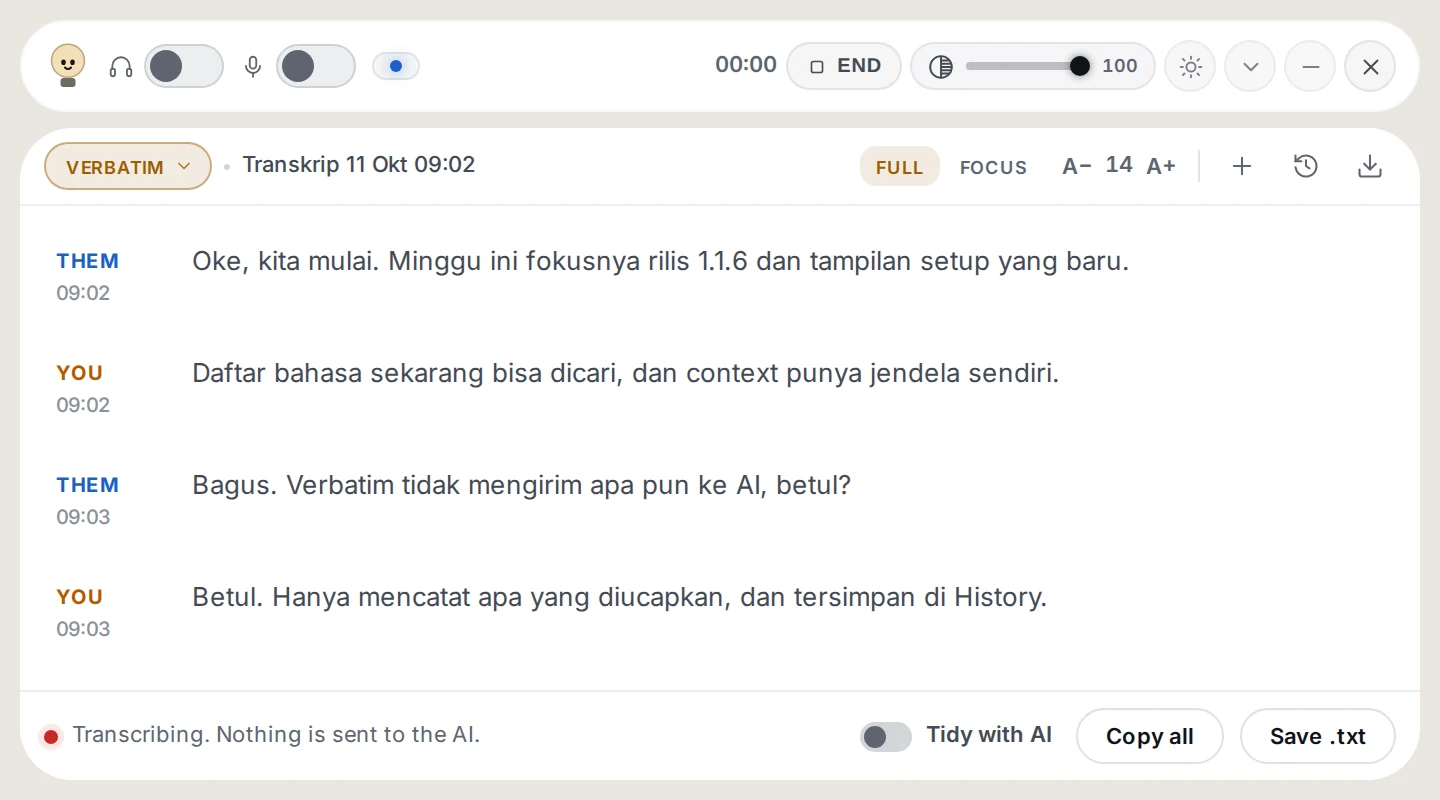
A transcript only. Everything said is written down with who said it and when. Nothing is sent to the AI unless you turn on Tidy with AI, so you pay only for the transcription.
When to use it
Minutes of a meeting
Lectures, interviews you want to quote, anything you want word for word
How to use it
Pick Verbatim. The input box is replaced by the transcript tools.
Switch on Listen for the other side and the microphone for your own voice.
One person talking becomes one paragraph; a new one starts when the speaker changes. Use Copy all or Save .txt; the transcript is also kept in History.
Optional: switch on Tidy with AI to have each finished paragraph cleaned (punctuation, numbers such as 24/7, words like diam-diam). What was heard is kept as well. This sends the text to the AI and is billed per paragraph.
Try saying
[09:02] Them: Okay, let us start...
Tip: Pick the right Speech language in Setup; Multilingual covers only ten languages (not Indonesian).
Verbatim mode, as it looks on the bar. A transcript only.
05Speech and languages
Most languages are transcribed live: the words appear as they are spoken.
Multilingual follows a conversation that switches between English, Spanish, French, German, Hindi, Russian, Portuguese, Japanese, Italian and Dutch. It does not cover Indonesian: pick Indonesian for that.
Javanese is transcribed after each pause rather than live, and the microphone cannot be used with it.
Answers are written in the speech language you chose, except in Translate.
06Credit
You pay per question, in rupiah, with no subscription. Top up from Top up in Setup, or on the website; every charge is on your history page.
Questions: each answer costs according to the model you pick and how long the question and answer are. Prices per model are on the website.
Listening: transcription is billed per minute of speech.
Verbatim: transcription only. With Tidy with AI on, each finished paragraph adds about 1 to 2 credits.
07Your data
Your settings, Context and chat history are stored on this computer. Updating the app keeps them.
When you ask, the question and your Context go to the server and the AI to produce the answer; the server does not keep them.
Uninstalling on Windows asks whether to also delete your Cuelight data. Leave it unticked to find everything again after a reinstall.
Nothing is heard: check that Listen is on and the speech language is right.
The microphone will not start: it needs live transcription, which Javanese does not have.
No transcript button: switch on Show transcript in Setup, and use FULL view (FOCUS hides it).
Answers seem off: add Context, or try a stronger model from the model menu.
Setup did not appear after END: update to 1.1.6, or open it from the tray icon.
Still stuck, or a payment did not arrive? Write to [email protected]. We answer in English or Indonesian.
Panduan
Panduan Cuelight
Semua yang perlu Anda ketahui untuk menyiapkan Cuelight dan memakai setiap mode. Gambar diambil dari versi 1.1.6.
01Memulai
Pasang. Unduh installer untuk komputer Anda di Downloads (Windows 64-bit atau 32-bit, macOS, Linux).
Masuk dengan email dan password, atau dengan Google. Akun baru mendapat kredit awal gratis.
Pilih model dan mode default di Setup, lalu tekan Start Cuelight. Bar muncul di bagian atas layar.
Peringatan Windows saat instalasi pertama. Installer belum ditandatangani (code-signed), jadi Windows bisa menampilkan "Windows protected your PC". Klik More info, lalu Run anyway. Halaman Downloads menampilkan pengingat ini begitu Anda mengunduh.
02Setup
Di Setup Anda memilih model, mode, dan apa yang perlu diketahui Cuelight. Buka dari ikon tray, atau dengan Ctrl+Shift+O.
Jendela Setup. Kiri: daftar model yang bisa dipakai; lencananya menunjukkan kemampuan tiap model (misalnya membaca gambar). Kanan atas: Options, berisi mode default, bahasa ucapan, dan preferensi. Kanan bawah: ringkasan Context. Tekan Start Cuelight untuk membuka bar.
Options
Default mode: mode saat bar dibuka. Bisa diganti nanti dari bar.
Speech language: bahasa yang diucapkan dalam panggilan. Pilih bahasa yang tepat agar transkripsinya paling akurat.
Auto-listen langsung mendengarkan begitu bar terbuka. Show transcript menyediakan panel transkrip berjalan. Minimize to tray dan Start with system mengatur cara aplikasi berjalan. Hide pointer in shares (Windows) menyembunyikan pointer mouse dari share layar.
Daftar yang bisa dicari. Klik daftar lalu mulai mengetik: di sini "ja" menemukan Japanese dan Javanese. Pakai tombol panah dan Enter untuk memilih, Esc untuk menutup. Pilihan yang paling sering dipakai ada di atas, di bagian Suggested.
Arti sebuah pilihan. Jika suatu bahasa punya batasan, baris di bawah daftar menjelaskannya. Multilingual mencakup sepuluh bahasa (Inggris, Spanyol, Prancis, Jerman, Hindi, Rusia, Portugis, Jepang, Italia, Belanda); untuk bahasa Indonesia, pilih Indonesian.
Sharing your screen? Membuka jendela ini. Isinya menjelaskan apa yang bisa disembunyikan sistem Anda dari share layar, dan tombol Check mengambil gambar dari apa yang terlihat saat share layar penuh, sehingga Anda bisa memastikan sendiri apakah bar terlihat.
Context
Context adalah apa yang perlu diketahui Cuelight tentang Anda dan situasinya. Disimpan hanya di komputer ini dan dikirim bersama setiap pertanyaan agar jawabannya sesuai; tidak pernah disimpan di server.
Ringkasan Context. Kartu ini menunjukkan bagian mana yang sudah terisi (titik hijau) dan seberapa banyak. Klik Edit, atau bagian mana pun, untuk membuka editornya.
Tab Instructions. Gaya jawaban yang Anda inginkan, misalnya "Jawab singkat" atau "Pakai bahasa formal". Tombol di bawah kotak menambahkan instruksi umum dengan sekali klik.
Tab Background. Fakta tentang pekerjaan atau rapat Anda (proyek, detail produk, agenda), catatan pribadi, dan file seperti PDF atau dokumen, yang dibaca lalu ditambahkan sebagai context.
Tab Interview. Resume dan deskripsi pekerjaan. Hanya dipakai di mode Interview dan System design. Auto Summarize meringkas deskripsi pekerjaan yang panjang.
03Bar
Bar berada di atas jendela lain. Di Windows, bar tidak terlihat di share layar maupun rekaman.
Bar dalam keadaan ringkas. Dari kiri: sakelar Listen (headphone, suara lawan bicara), sakelar mikrofon (suara Anda), status, timer sesi, END untuk menghentikan semuanya, slider transparansi, tombol tema, panah buka-tutup panel, minimize, dan tutup.
Yang terdengar. Ucapan muncul di baris biru di atas kotak ketik, kata terbaru selalu terlihat (awal kalimat panjang memudar). Use memindahkannya ke kotak ketik agar bisa diedit; Ask langsung mengirimnya; ikon tempat sampah membuangnya.
Mengganti model. Klik nama model di atas panel, ketik untuk mencari, lalu pilih yang lain. Pertanyaan berikutnya memakai model itu, dan pilihan ini tetap tersimpan untuk sesi berikutnya.
Mengganti mode. Klik nama mode di kiri atas panel untuk berganti mode di tengah sesi.
Transkrip
Nyalakan Show transcript di Setup, lalu klik tombol gelombang di atas panel. Bar melebar dan transkrip terbuka di samping percakapan (di layar sempit, transkrip terbuka di atasnya). Isinya tidak disimpan; untuk transkrip yang tersimpan, pakai Verbatim.
Transkrip di samping jawaban. Apa yang diucapkan, dalam paragraf per pembicara (Them biru, You oranye) beserta jam; kata yang sedang diucapkan tampil abu-abu di ujungnya. Arahkan kursor ke paragraf untuk Use (masuk ke kotak ketik) atau Ask (langsung dikirim), jadi Anda bisa bertanya tentang kalimat mana pun, bukan hanya yang terakhir. Copy all menyalin semuanya; jika Anda menggulir ke atas, tombol New lines membawa kembali ke bawah.
Pintasan keyboard
Ctrl+Shift+HTampilkan atau sembunyikan bar
Ctrl+Shift+TMengetik pesan
Ctrl+Shift+ABertanya dengan yang terdengar
Ctrl+Shift+SAmbil gambar layar lalu tanyakan
Ctrl+Shift+LJeda atau lanjutkan mendengarkan
Ctrl+Shift+XAkhiri sesi
Ctrl+Shift+OBuka Setup
Ctrl+Enter / TabDi kotak ketik: bertanya dengan yang terdengar / ambil untuk diedit
Di macOS, pakai Cmd sebagai pengganti Ctrl.
04Mode
Setiap mode memberi Cuelight instruksi yang berbeda, sehingga pertanyaan yang sama mendapat jenis jawaban yang berbeda. Pilih di Setup, atau ganti dari menu mode di bar.
Asisten umum untuk apa saja: fakta singkat, penjelasan, perbandingan, atau draf tulisan.
Kapan dipakai
Anda butuh jawaban tanpa format khusus
Anda tidak sedang dalam panggilan dan cukup mengetik pertanyaan
Anda ingin bertanya tentang sesuatu di layar
Cara memakai
Pilih Chat di menu mode, kiri atas panel.
Ketik pertanyaan di kotak bawah lalu tekan Enter. Bisa juga lewat mikrofon, atau tombol kamera untuk mengirim isi layar.
Jawaban muncul dalam paragraf pendek, dengan daftar atau tabel bila lebih jelas.
Contoh
"Vercel atau Fly.io untuk aplikasi Node kecil?"
Tips: Lampirkan file (ikon klip) atau screenshot (ikon kamera) lalu tanyakan isinya dalam pesan yang sama.
Mode Chat, seperti tampil di bar. Asisten umum untuk apa saja: fakta singkat, penjelasan, perbandingan, atau draf tulisan.
Meeting
Untuk rapat dan panggilan. Saat ada pertanyaan untuk Anda, Cuelight menyiapkan jawaban singkat yang bisa Anda ucapkan dengan kata-kata sendiri. Minta ringkasan, dan Anda mendapat keputusan, tindak lanjut, dan pertanyaan terbuka.
Kapan dipakai
Rapat tim, panggilan klien, stand-up
Anda ingin jawaban siap saat ditanya
Anda butuh ringkasan di akhir rapat
Cara memakai
Pilih Meeting, lalu nyalakan Listen (sakelar headphone) agar Cuelight mendengar panggilan.
Ucapan yang terdengar muncul di baris biru di atas kotak ketik. Saat ada pertanyaan untuk Anda, tekan Ask (atau Ctrl+Enter) untuk mendapat jawaban.
Ketik "Ringkas rapat sejauh ini" kapan saja untuk mendapat Keputusan, Tindak lanjut, dan Pertanyaan terbuka.
Contoh
"Ringkas rapat sejauh ini." atau "Apa keputusan soal tanggal rilis?"
Tips: Cuelight tidak mengarang hal yang tidak diucapkan; bagian yang belum pasti akan ditandai.
Mode Meeting, seperti tampil di bar. Untuk rapat dan panggilan.
Interview
Untuk wawancara kerja. Cuelight menjawab seperti Anda, sebagai orang pertama: satu kalimat pembuka yang bisa langsung diucapkan, lalu detailnya. Pertanyaan perilaku dijawab dengan pola STAR (Situasi, Tugas, Tindakan, Hasil), berdasarkan resume dan deskripsi pekerjaan Anda.
Kapan dipakai
Wawancara kerja online
Anda ingin jawaban yang sesuai pengalaman Anda dan posisi yang dilamar
Cara memakai
Sebelum mulai, buka Setup, Context > Edit > Interview: unggah resume dan tempel deskripsi pekerjaan.
Pilih Interview dan nyalakan Listen.
Pertanyaan pewawancara muncul di baris biru. Tekan Ask lalu baca kalimat pembukanya selagi sisanya muncul.
Contoh
"Ceritakan saat Anda menangani insiden di production."
Tips: Ucapkan dengan gaya Anda sendiri. Tekan Ctrl+Shift+H untuk menyembunyikan bar kapan saja.
Mode Interview, seperti tampil di bar. Untuk wawancara kerja.
Coding
Untuk pertanyaan pemrograman dan wawancara coding. Jawaban mengikuti pola tetap: pemahaman, pendekatan, kompleksitas, kode lengkap, test case, edge case, dan optimasi.
Kapan dipakai
Wawancara coding atau live coding test
Anda buntu di bug atau algoritma
Anda butuh kode yang bisa langsung disalin
Cara memakai
Pilih Coding.
Ketik atau ucapkan soalnya, atau tekan tombol kamera untuk mengirim soal yang tampil di layar.
Pakai tombol Copy di blok kode untuk mengambil kodenya.
Contoh
"Two Sum dalam O(n), Python." atau screenshot soalnya
Tips: Pakai Focus (atas panel) agar hanya jawaban yang tampil saat membaca kode.
Mode Coding, seperti tampil di bar. Untuk pertanyaan pemrograman dan wawancara coding.
Translate
Terjemahan langsung. Ucapan diterjemahkan ke bahasa pilihan Anda, dan hanya terjemahannya yang tampil. Nama, angka, dan istilah teknis tetap persis.
Kapan dipakai
Panggilan dalam bahasa yang kurang Anda kuasai
Membaca teks asing di layar
Cara memakai
Di Setup, pilih Translate sebagai mode default dan atur Translate into (atau biarkan "Same as speech language").
Atur Speech language ke bahasa yang diucapkan, agar transkripsinya paling akurat.
Nyalakan Listen, lalu tekan Ask pada kalimat yang ingin diterjemahkan.
Contoh
Terdengar: "来週のデモの準備はできていますか?" → "Apakah demo untuk minggu depan sudah siap?"
Tips: Jika teks sudah dalam bahasa tujuan, Cuelight menerjemahkannya ke bahasa Inggris.
Mode Translate, seperti tampil di bar. Terjemahan langsung.
System design
Untuk wawancara dan latihan system design. Jawaban tersusun per bagian: kebutuhan, arsitektur, komponen, database, skala, cache, keamanan, dan trade-off.
Kapan dipakai
Sesi system design dalam wawancara
Latihan menyusun jawaban desain
Cara memakai
Pilih System design di menu mode.
Ketik atau ucapkan pertanyaan desainnya.
Bahas bagian demi bagian; ajukan pertanyaan lanjutan seperti "bagaimana jika skalanya 10 kali?"
Contoh
"Desain URL shortener untuk 100 juta link per bulan."
Tips: Isi resume dan deskripsi pekerjaan di Context; mode ini juga memakainya.
Mode System design, seperti tampil di bar. Untuk wawancara dan latihan system design.
Verbatim
Transkrip saja. Semua yang diucapkan dicatat, lengkap dengan siapa yang bicara dan kapan. Tidak ada yang dikirim ke AI kecuali Anda menyalakan Tidy with AI, jadi Anda hanya membayar transkripsinya.
Kapan dipakai
Notulen rapat
Kuliah, wawancara yang ingin dikutip, apa pun yang perlu kata per kata
Cara memakai
Pilih Verbatim. Kotak ketik diganti alat transkrip.
Nyalakan Listen untuk suara lawan bicara, dan mikrofon untuk suara Anda sendiri.
Satu orang yang berbicara menjadi satu paragraf; paragraf baru dimulai saat pembicara berganti. Pakai Copy all atau Save .txt; transkrip juga tersimpan di History.
Opsional: nyalakan Tidy with AI agar setiap paragraf yang selesai dirapikan (tanda baca, angka seperti 24/7, kata seperti diam-diam). Teks aslinya tetap disimpan. Fitur ini mengirim teks ke AI dan ditagih per paragraf.
Contoh
[09:02] Them: Oke, kita mulai...
Tips: Pilih Speech language yang tepat di Setup; Multilingual hanya mencakup sepuluh bahasa (tidak termasuk Indonesia).
Mode Verbatim, seperti tampil di bar. Transkrip saja.
05Suara dan bahasa
Sebagian besar bahasa ditranskrip langsung: kata-kata muncul selagi diucapkan.
Multilingual mengikuti percakapan yang berpindah-pindah antara Inggris, Spanyol, Prancis, Jerman, Hindi, Rusia, Portugis, Jepang, Italia, dan Belanda. Bahasa Indonesia tidak termasuk: pilih Indonesian.
Bahasa Jawa ditranskrip setelah setiap jeda, tidak langsung, dan mikrofon tidak bisa dipakai bersamanya.
Jawaban ditulis dalam bahasa ucapan yang Anda pilih, kecuali di mode Translate.
06Kredit
Anda membayar per pertanyaan, dalam rupiah, tanpa langganan. Isi ulang lewat Top up di Setup, atau di website; setiap tagihan tercatat di halaman riwayat.
Pertanyaan: biaya tiap jawaban bergantung pada model yang Anda pilih dan panjang pertanyaan serta jawabannya. Harga per model ada di website.
Mendengarkan: transkripsi ditagih per menit ucapan.
Verbatim: hanya transkripsi. Jika Tidy with AI menyala, setiap paragraf yang selesai menambah sekitar 1 sampai 2 kredit.
07Data Anda
Pengaturan, Context, dan riwayat percakapan disimpan di komputer ini. Update aplikasi tidak menghapusnya.
Saat Anda bertanya, pertanyaan dan Context dikirim ke server dan AI untuk membuat jawaban; server tidak menyimpannya.
Saat uninstall di Windows, Anda ditanya apakah data Cuelight juga dihapus. Biarkan tidak dicentang agar semuanya kembali setelah instal ulang.